How AI Generation Works
The end-to-end flow from asking Chat for prose to seeing it in your draft.
Last updated October 2026
The Big Picture
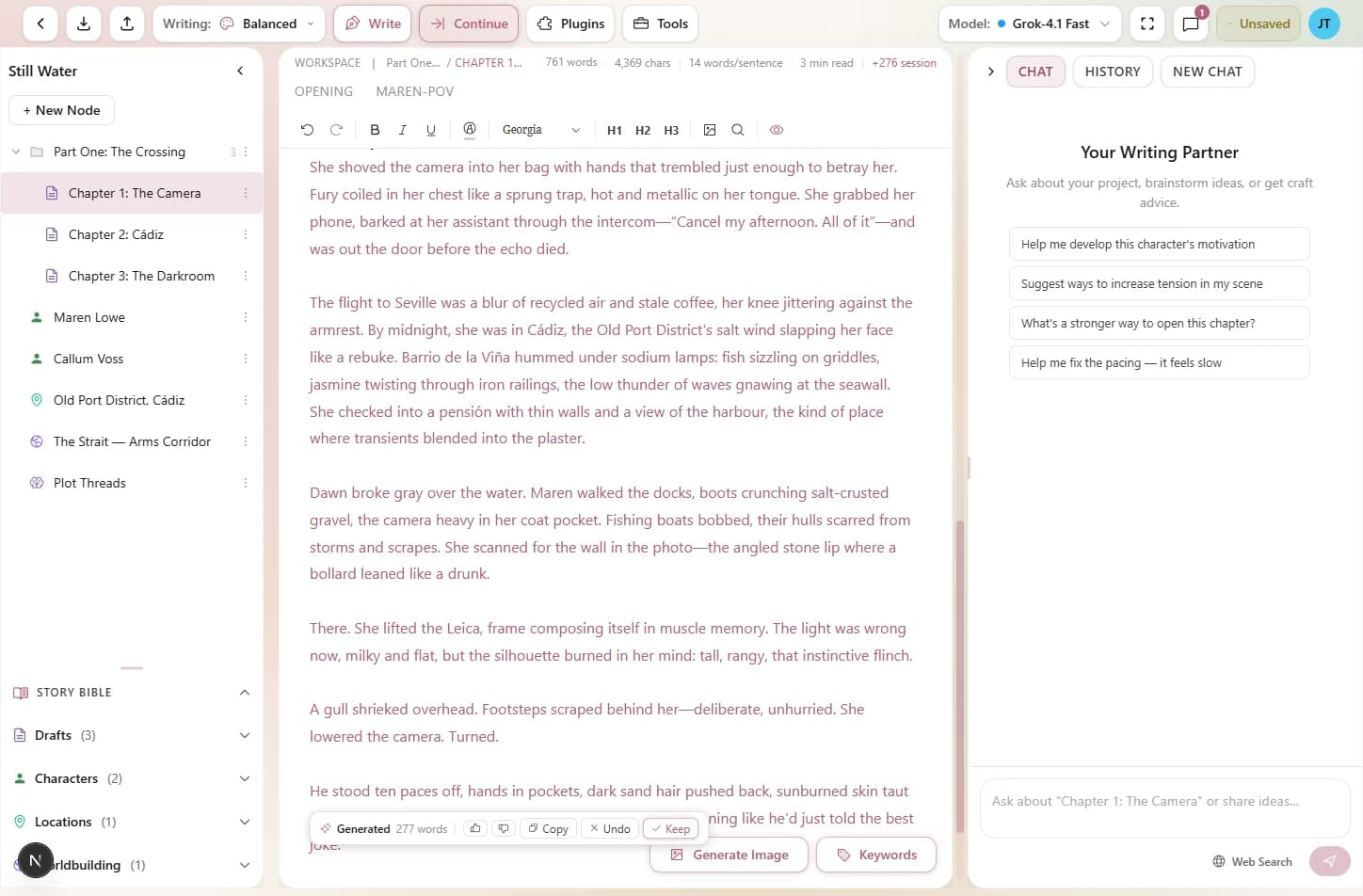
Writing in Genesis Writer is chat-first. When you ask Chat, the assistant in the writer's right panel, to write or continue a scene, Genesis Writer doesn't just fire off your text to an AI model and hope for the best. There's a carefully orchestrated pipeline that collects context about your story, reserves tokens from your balance, generates the prose, and hands it back to you to add to your draft when you're ready.
Understanding this flow helps you get better results, because every step is designed to give the AI the most relevant information about your story.
The generation pipeline — from your request to finished prose
Step 1: You Ask Chat
Everything starts with a message in the chat (on phones, the assistant sheet). There are no Write or Continue buttons — you ask in plain words. Ask Chat to write a new scene (“write the scene where Maya opens the bell tower door”) or to continue from where your draft ends (“continue this chapter”).
Most Chat turns are simply conversation. When you ask for something to be made or changed — or say yes to Chat's offer to draft something — that turn does the work, and the pipeline below runs.
Step 2: Context Building
Before anything reaches the AI model, Genesis Writer assembles a rich context package about your story. This is what separates it from pasting text into a generic chatbot — the AI understands your characters, your world, and your story structure.
The context builder collects:
- Document hierarchy — the content of parent and sibling nodes in your project tree (automatically trimmed to stay within model limits).
- Story Bible entries — characters, locations, worldbuilding, and draft summaries that are automatically matched to your current scene using a multi-signal scoring system.
- Character context — rich character data including biography, voice profile, and personality analysis.
- Project metadata — your genre, tone, themes, and logline, so the AI writes in the right register.
- Writing style instructions — if you've selected a writing style, its instructions are applied to shape the output's vocabulary, rhythm, and tone.
Step 3: Token Reservation
Before the AI starts generating, Genesis Writer reserves tokens from your balance. This is a hold, not a charge — think of it like a hotel putting a hold on your credit card at check-in.
The reservation system works like this:
- Tokens are reserved based on the estimated maximum output for your chosen model.
- If something goes wrong (network drops, browser crash), the hold automatically expires and your tokens come back.
- When the generation finishes, the actual token cost is calculated from what the AI generated (usually less than the reservation), and only that amount is deducted. The rest is released.
- If you press Stop, you pay only for what was generated up to that point; if nothing was generated, the reservation is refunded.
Step 4: Streaming
Genesis Writer streams the AI's response from the model as it is generated, so long generations from slower, premium models like Claude Opus 5 stay reliable. While the prose is being written, its card in the chat shows that it's generating.
You can stop generation at any time with the Stop button in the chat composer. Anything already written stays on the card, and you only pay for the tokens used up to that point.
Step 5: The Prose Arrives in Chat
When the generation finishes, the prose arrives as a card in the chat, with its word count and a preview you can expand to read in full. Nothing has touched your draft yet — read it, ask Chat for another version, or copy it.
Step 6: Inserting into Your Draft
Choose Insert into draft on the card. The prose is added to the end of a draft that already has text, or fills an empty draft, and is saved automatically.
If you use Full access, the assistant applies its work to your project as it goes instead of waiting for you. While prose is being written into a draft, the editor is read-only and a pill at the bottom centre of the editor shows a Stop button.
To see exactly what changed — and compare before and after — open the Activity tab, which shows a word-level diff of every change.
Truncation Warnings
Every AI model has a maximum output length (measured in tokens). If a generation hits that limit before the AI naturally finishes, the text gets truncated and may stop mid-thought.
The truncated result is still perfectly usable, just incomplete. Insert it, then ask Chat to continue from where it stopped to pick up the narrative thread.
How Selection Tools Differ
The pipeline described above applies to prose you ask Chat to write, which is added at the end of your draft. Selection tools work differently:
- Rewrite, Expand, Describe, and Plugins operate on selected text. You highlight a passage, run the tool, and the result replaces or augments your selection.
- There's no “placement mode” — the output goes exactly where your selection is.
- On desktop the result arrives as a card in the chat; on phones it opens in a transform sheet. The same token reservation system applies.
For a full walkthrough of selection tools, see Selection Tools.
What Happens Behind the Scenes
When you ask Chat for prose, the server performs several checks before generation begins: authentication, token balance verification, content safety validation, context assembly, style application, and token reservation. Then the AI generates your text via streaming. You're charged for the actual output; if you stop before anything is generated, your tokens are fully refunded.
All of this happens in milliseconds (for the setup) to seconds (for the generation itself). The system is designed so you never have to think about any of it — just ask Chat and start reading.
Next, learn how to pick the right model for your writing in Choosing a Model.