Your First Project
Create a project, configure settings, and explore the project hub.
Last updated March 2026
Creating a New Project
Once you're logged in, you'll land on the Project Hub — your home base for all your writing projects. To create a new one:
- Click the New Project button in the top-right corner.
- Give your project a title (you can always change it later).
- Choose a genre and set your story's tone.
- Click Create — you'll be taken straight to the writer.
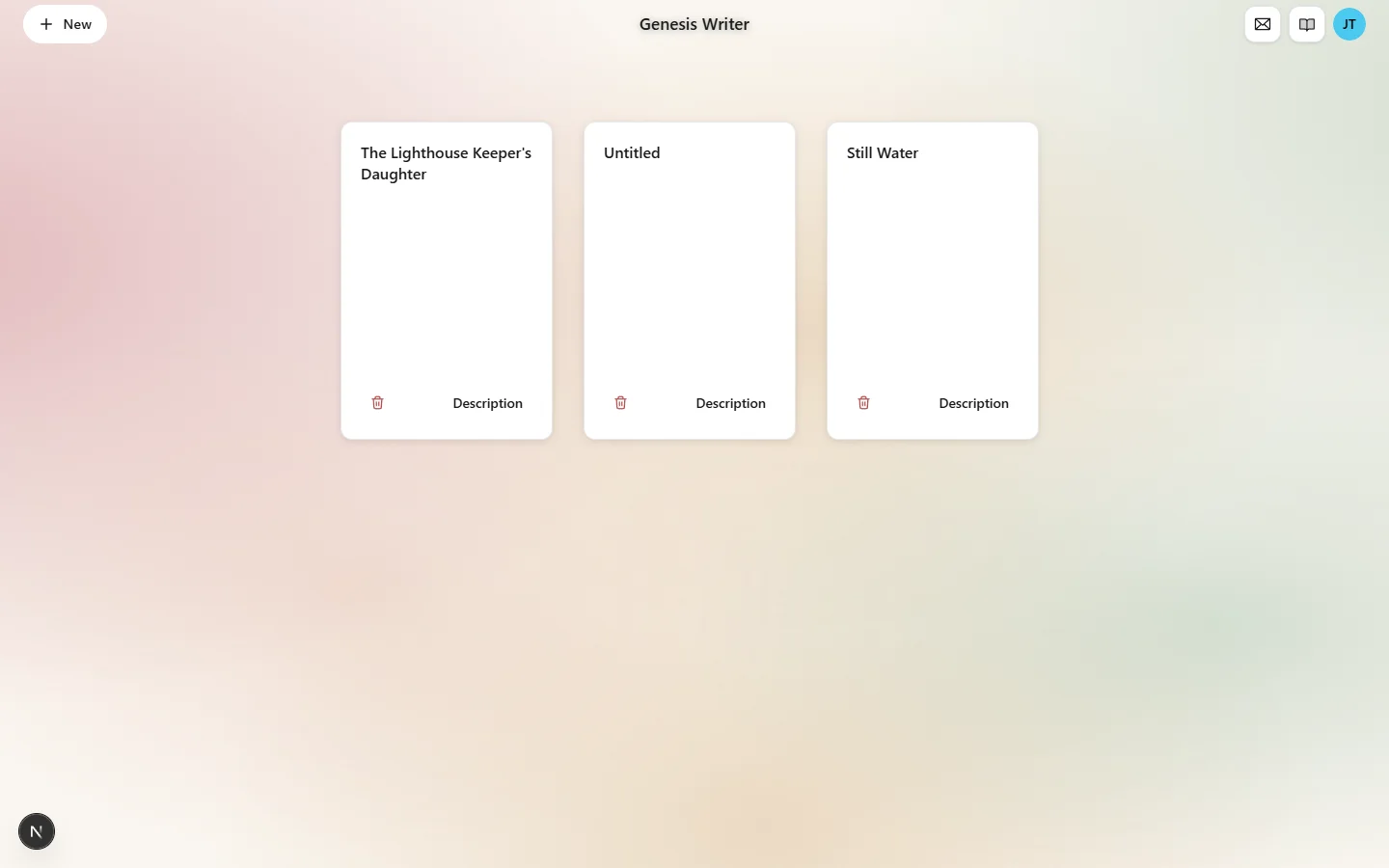
The Project Hub — your home base for all writing projects
Project Settings
Every project has settings that help the AI understand your story. These settings feed into the AI's context when it generates prose, so the more you fill in, the better your results will be.
Title & Logline
Your project title appears in the hub and in exports. The logline is a one-sentence summary of your story's premise. Think of it as an elevator pitch — who is the protagonist, what do they want, and what stands in their way?
A good logline helps the AI understand your story's direction. For example:
A retired detective must solve one last case when her estranged daughter disappears from a small coastal town hiding dark secrets.
Genre & Tone
The genre tells the AI what conventions to follow — romance, thriller, fantasy, literary fiction, science fiction, horror, mystery, and more. You can pick the genre that best fits your story, and the AI will adjust its prose style accordingly.
The tone sets the emotional temperature. Is your story dark and brooding? Light and humorous? Tense and suspenseful? The tone influences word choice, pacing, and the overall mood of generated prose.
Themes
Add themes that run through your story — betrayal, redemption, coming of age, power and corruption. Themes give the AI deeper understanding of your story's core ideas and help it weave thematic resonance into generated prose.
The Project Hub
The Project Hub is your dashboard for managing all your projects. Each project card shows:
- Project title and genre
- Last edited timestamp
- Word count and node count
- Quick access to open the writer
Click any project card to open it in the writer. You can also pin projects, archive old ones, or delete them from the hub.
Starting from a Template
If you'd rather not start from a blank page, Genesis Writer includes project templates for common story structures. Templates come pre-loaded with planning nodes, character placeholders, and a suggested scene structure. You can use them as-is or customize them to fit your story.
Next Steps
Your project is ready. Now it's time to learn your way around the writer interface.
- The Writer Interface — understand the three-panel layout and core tools.
- Quick Start Guide — write your first scene with AI in five minutes.