The Writer Interface
A walkthrough of the three-panel writer layout and core tools.
Last updated October 2026
The Three Panels
The writer is built around a three-panel layout. Each panel serves a specific purpose, and together they give you everything you need without leaving the writing environment.
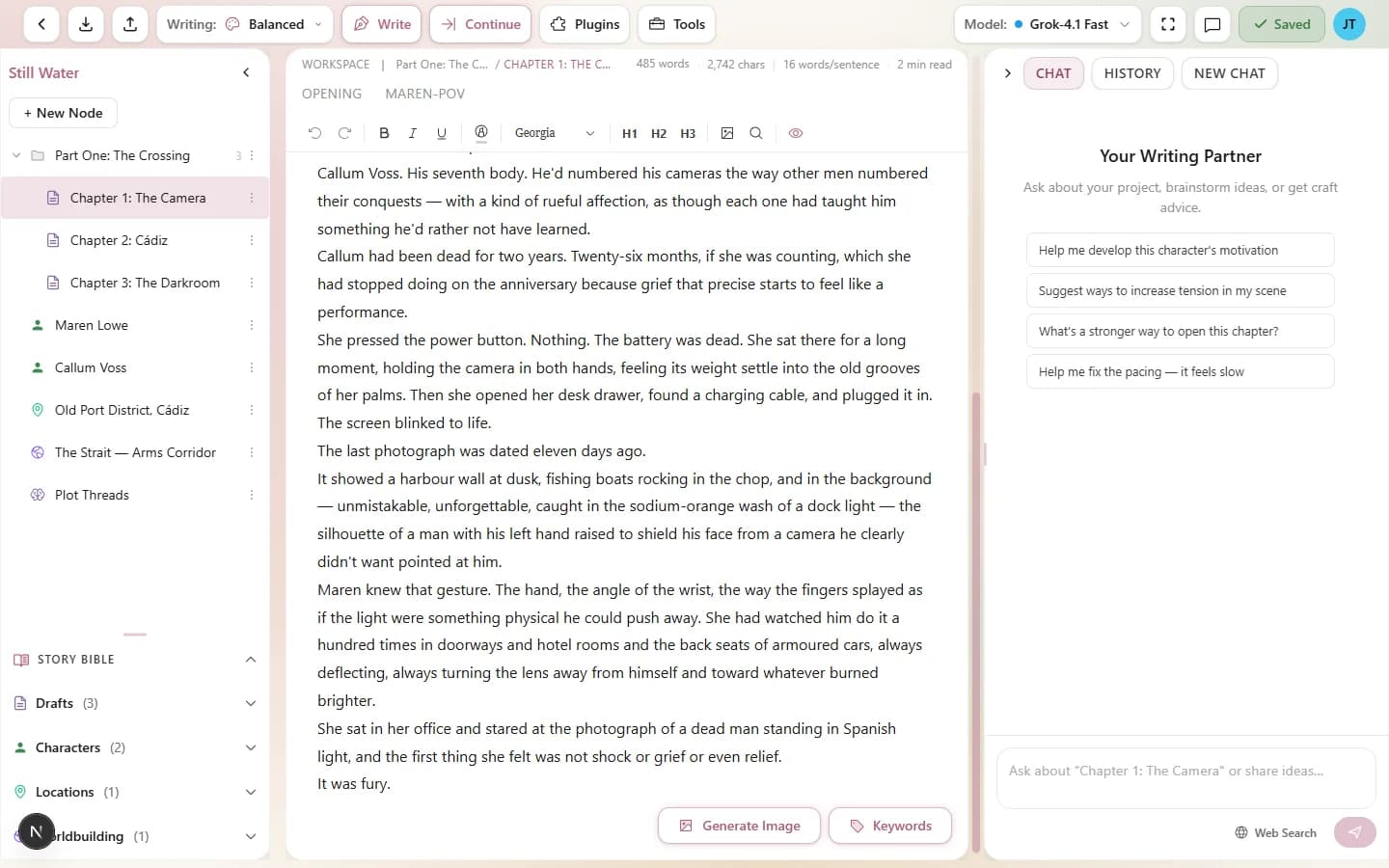
The writer interface — node tree (left), editor (center), tools (right)
Left Panel — Node Tree
The left panel is your project's table of contents. It displays all your nodes — drafts, characters, locations, worldbuilding entries, and folders — in a tree hierarchy that you can organize however you like.
- Drag and drop nodes to reorder them or nest them under parent nodes.
- Right-click a node for options: rename, duplicate, move to trash, change type.
- Click the + button to add a new node of any type.
- Nodes can have statuses: Draft, In Review, or Final.
The tree structure matters because it determines the context hierarchy. When the AI generates prose in a draft, it pulls context from sibling and parent nodes to understand your story's structure. A well-organized tree means better AI output.
Center Panel — Editor
The center panel is where writing happens. It's a rich text editor that supports all the formatting you'd expect:
- Bold, italic, underline, strikethrough
- Headings (H1 through H4)
- Ordered and unordered lists
- Blockquotes
- Text color and highlighting
- Font family selection
- Text alignment (left, center, right, justify)
- Inline images
What makes it special is the AI integration. Ask Chat, the assistant in the right panel, to write or continue a scene, or select text and use tools like Rewrite, Expand, or Describe to transform it. Prose Chat writes arrives as a card in the chat; Insert into draft adds it to the end of your draft. While prose is being written into a draft, the editor is read-only and a pill at the bottom centre of the editor shows a Stop button. You can review every change in the Activity tab.
Right Panel — Tools
The right panel houses your creative tools. It has two tabs:
AI Chat
Have a conversation with the AI about your story. Ask for plot advice, explore character motivations, work through a tricky scene, or get feedback on what you've written. The chat is context-aware — it knows about your project's characters, locations, worldbuilding, and story settings, so its advice stays grounded in your world.
The chat uses a rolling memory system — it keeps your recent messages in context and automatically summarizes older ones, so you can have long conversations without losing the thread. Each new message in the chat costs tokens (like any AI generation), and you can use any of your available models.
Common uses: working through plot holes, asking “what if” questions about your story, getting feedback on a passage, exploring names and titles, or talking through a scene before writing it.
History
The History tab lists your past conversations with the assistant, newest first. Open one to pick it up where you left off, or use its menu to rename, duplicate, export or delete it (a delete can be undone for a few seconds).
Node Types
Genesis Writer uses a node system to organize your project. Each node type serves a different purpose:
| Type | Purpose |
|---|---|
| Draft | Your actual writing — chapters, scenes, sections. This is where AI generation happens. |
| Character | Character profiles with biography, voice, and personality data. Used for AI context. |
| Location | Settings and places in your story. Descriptions feed into AI generation context. |
| Worldbuilding | World rules, history, magic systems, and other reference material. |
| Folder | Organizational containers for grouping related nodes. |
The Toolbar
The writer has two toolbar areas:
Header bar (top of the page) — your AI controls and status:
- AI model selector — choose which model generates your prose.
- Style selector — pick a writing style to control tone and voice.
- Save indicator — shows current save status.
There are no Write or Continue buttons in the header: you ask Chat, the assistant in the right panel, for prose instead (see Writing and Continuing with Chat).
Formatting toolbar (inside the editor) — text formatting and search:
- Text styling — bold, italic, underline, headings, and more.
- Lists & alignment — ordered lists, unordered lists, text alignment.
- Find & Replace — search and replace text in your draft.
Everything is designed to be within reach without cluttering the writing space. Panels can be collapsed to give you a more focused view when you need it.
Now that you know the layout, try the Quick Start Guide to write your first scene.