AI Character Chat
Have conversations with your characters to develop their voice and story.
Last updated March 2026
AI Character Chat is available on every plan, including Free. Each message costs about 1,000 Genesis Tokens, so your balance is the only limit. (Generating a scene image from inside a chat is a paid feature — see Character Portraits.)
What Character Chat Is
Character Chat lets you have a real-time conversation with any character you've created. The character responds in their own voice, drawing on their biography, personality, and speech patterns from their profile data. It's like interviewing your own fictional creation.
This is one of the most powerful tools for character development. Instead of guessing how a character would react to a situation, you can ask them. Instead of writing dialogue and hoping it sounds right, you can test their voice in real time and adjust their profile until they sound exactly the way you imagined.
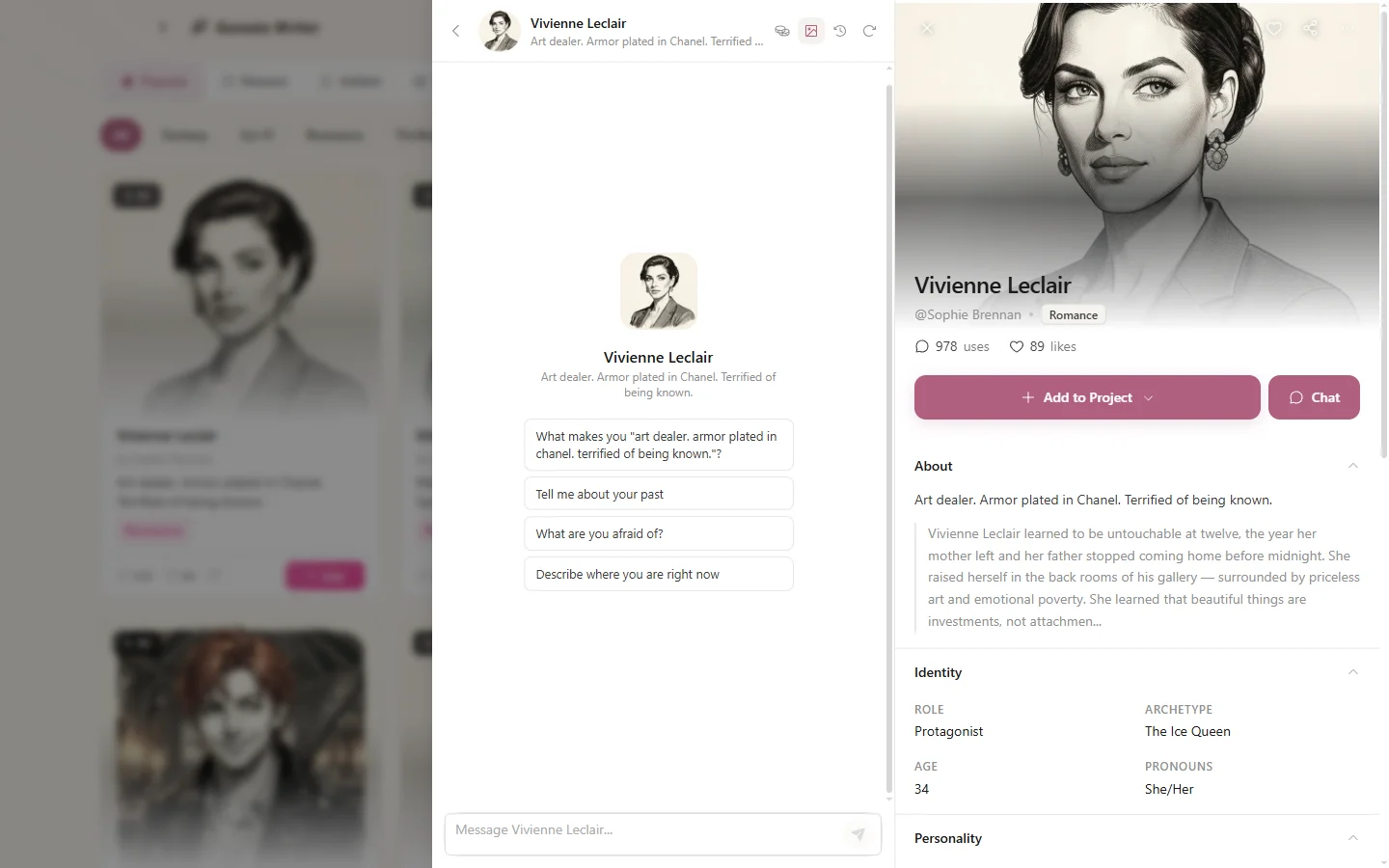
Chat with your characters to develop their voice and explore their personality
Starting a Chat
Open any character from your library or from the writer's character panel, then click the Chat button. A chat window opens with the character's portrait, name, and a text input where you can start talking.
To start a fresh conversation at any time, click the New Chat button. This clears the current conversation and begins a new session without losing your previous chat history.
Conversation Starters
Not sure what to say? Each character comes with conversation starter suggestions — questions and prompts tailored to their personality and backstory. Click any starter to use it as your opening message.
Starters are customizable. As you develop a character, the suggestions adapt to reflect their story role, motivations, and key relationships.
How It Works
Character Chat uses a dedicated model (separate from your Write/Continue model) that's optimized for role-play and unrestricted character voice. This matters for creative writing — your characters need to be able to express anger, fear, moral ambiguity, and complex emotions without the AI refusing to respond. A villain should sound like a villain.
Token Cost
Each message in Character Chat costs approximately 1,000 Genesis Tokens. This covers both your input and the character's response. It's one of the most cost-effective features in Genesis Writer.
Context Window
The AI maintains a long context window, remembering a substantial portion of the current conversation. This gives you room for deep, evolving discussions without the character forgetting what you talked about earlier.
Rolling Memory
In extended conversations, the rolling memory system kicks in automatically. It summarizes older messages while keeping recent ones in full. This means the character retains the gist of everything you've discussed, even in very long conversations, while keeping the most recent context crisp and detailed.
You don't need to do anything to activate this — it happens automatically in the background. The character will still reference things from the beginning of your conversation, just with less granularity.
Chat Features
Session History
Every conversation is saved automatically. You can browse previous chat sessions with timestamps, scroll through past conversations, and pick up where you left off. This is useful for tracking how your understanding of a character has evolved over time.
Copy Responses
Hover over any character response and click the Copy button to copy it to your clipboard. This is perfect for pulling a particularly well-written piece of dialogue directly into your draft. You can paste it into the editor and use it as a starting point for a scene.
Scene Image Generation
Character Chat includes an optional scene image generation toggle. When enabled, the AI can generate a visual representation of the scene being discussed. Each scene image costs 15,000 Genesis Tokens.
This is purely optional and off by default. Turn it on when you want to visualize a moment in your character's story — useful for inspiration or for creating mood boards for your project.
Markdown Rendering
Character responses support inline markdown formatting. The AI may use bold for emphasis, italics for internal thoughts or narrative description, and other formatting to make responses more expressive and readable.
Great Use Cases
Character Chat shines in several scenarios:
- Finding a character's voice — chat with them before you write their first scene. Ask casual questions, push their buttons, see how they respond. You'll quickly discover their verbal tics and speech rhythm.
- Exploring reactions to plot events — tell the character what just happened in your story and ask how they feel. Their response can reveal motivations and emotional responses you hadn't considered.
- Developing backstory through dialogue — ask about their past. Where did they grow up? What's their biggest regret? The character's responses can inspire backstory details you can add to their profile.
- Testing character dynamics — describe a scene with another character and ask how they'd handle it. This is great for planning confrontation scenes or romantic tensions.
- Breaking writer's block — when you're stuck on a scene, chat with the character involved. Ask them what they think should happen next. Sometimes a character's perspective is exactly the creative spark you need.
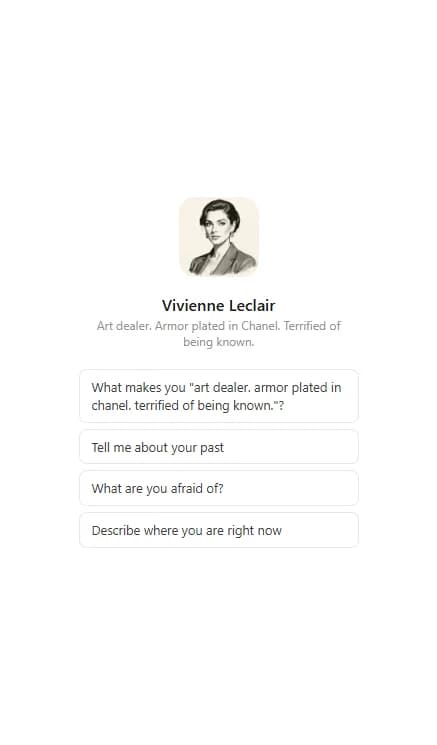
Use character chat for voice discovery, plot exploration, and backstory development
Tips for Better Conversations
- Set the scene. Instead of asking abstract questions, describe a situation: “You're standing in front of the burning house. What do you do?” Characters give richer responses when they have context.
- Push back. If a character gives a generic answer, challenge them. Ask “Why?” or “That doesn't sound like you.” The AI will dig deeper into the character's profile to justify its response.
- Update the profile after chatting. If you discover something interesting in a chat session — a speech pattern, a hidden motivation, a surprising reaction — add it to the character's profile. The richer the profile, the better future conversations will be.
- Use copy liberally. When the character says something perfectly in-voice, copy it and paste it into your draft or into the Voice & Speech field of their profile.
Next Steps
- Character Profiles & Biography — make your profiles richer for better chat responses.
- Character Portraits — give your character a face to go with the voice.
- AI Write & Continue — take what you've learned from chatting and write the scene.
- The Token Economy — understand how chat tokens fit into your monthly budget.