Using Plugins
Select text and run plugins to transform your prose.
Last updated September 2026
Overview
Plugins in Genesis Writer are selection-based tools. You select text in your draft, choose a plugin, and the plugin processes your selection through an AI prompt pipeline. The result arrives as a card in the assistant chat, and nothing in your draft changes until you choose Apply.
This applies to all plugins — both the 9 built-in plugins and any marketplace plugins you've added or custom plugins you've created.
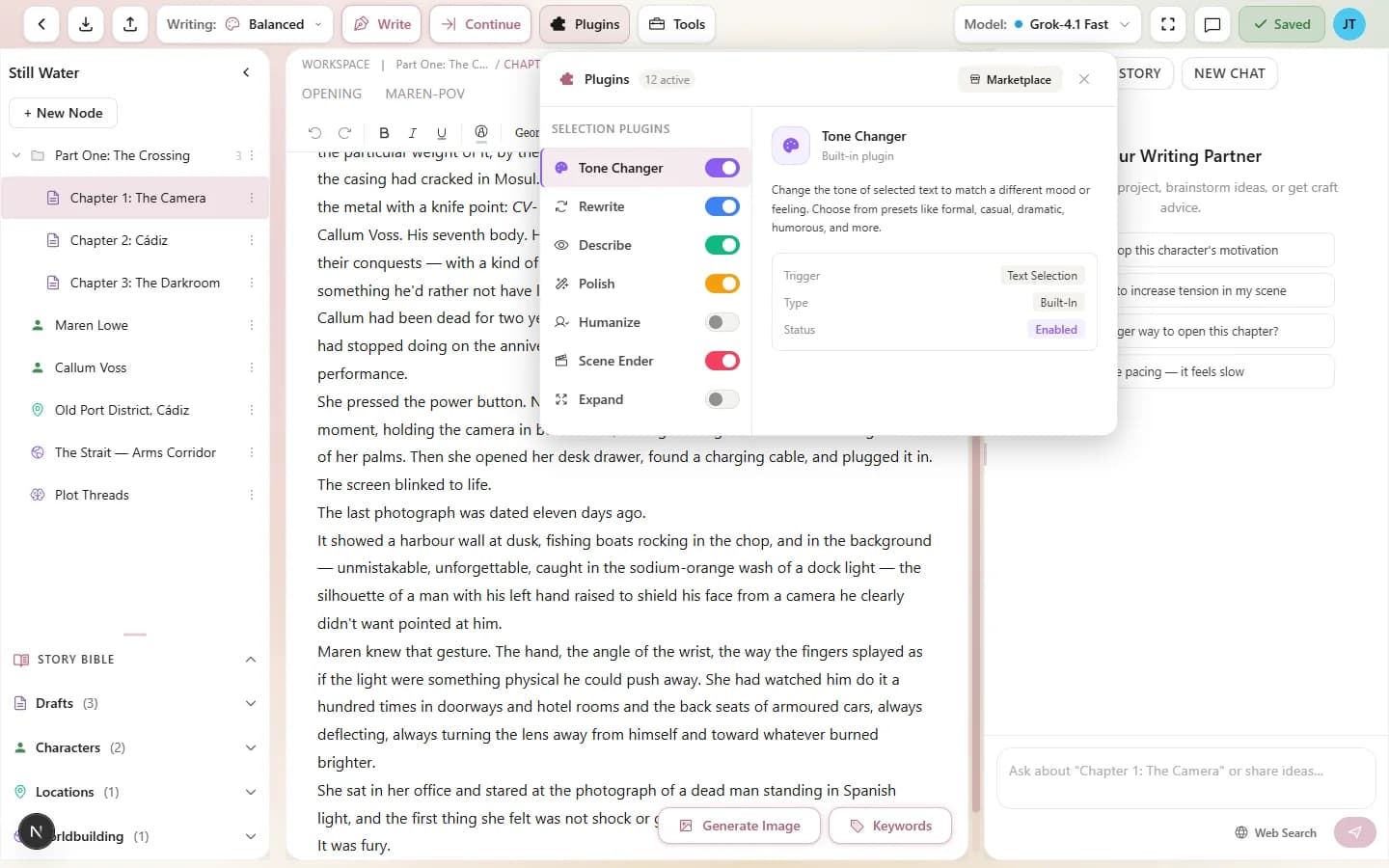
Select text to see plugin options in the floating toolbar
Selecting Text
Before you can run a plugin, you need text selected in the draft editor. Click and drag, or use keyboard shortcuts like Shift+Arrow or Ctrl+A (Cmd+A on Mac) to select text.
The selection is your input. A plugin operates on exactly what you've highlighted — nothing more, nothing less. If you want to transform a single sentence, select just that sentence. If you want to rework an entire scene, select the whole thing.
Running a Plugin
When you select text, a floating toolbar appears beside the selection. Click a plugin on it to run that plugin on your selection.
- On the toolbar — Tone, Rewrite, Describe, Polish and Reader Reaction, followed by the first three plugins you've added.
- Under More (…) — Expand, Scene Ender, Show Don't Tell, Dialogue Polish, and any further plugins you've added.
After you choose a plugin, the AI works on your selected text and the result appears in a card in the assistant chat when it's ready.
Choosing Which Plugins Appear
The Plugins button in the writer header opens a list of every plugin you can use, each with a switch. Switch a plugin off to take it off the selection toolbar; switch it on to bring it back. The list stays open, so you can change several at once, and it works while the AI is writing.
- Built in — the 9 built-in plugins, all on to start with.
- Added — plugins you've added from the Marketplace and plugins you've made yourself.
Point at a plugin, or move to it with the arrow keys, to see what it does and where it sits on the selection toolbar. Find more plugins opens the Marketplace, and Manage added opens its Added tab, where you can remove plugins you no longer want. Plugins you made or copied are on the Yours tab instead; when those are all you have, the link reads Manage yours. The list keeps a fixed order.
Plugin Configuration
Some plugins have configuration options that appear before execution. The most notable example is Tone, which lets you pick a tone preset before running.
Custom plugins may also include user-facing options depending on how they were built. When a plugin has configuration, a small dialog appears after you select it — set your preferences and click Run to execute.
Multi-Stage Plugins
Some plugins — especially custom ones — use a multi-stage pipeline. This means the plugin runs your text through multiple AI processing steps in sequence, where each stage builds on the output of the previous one.
When a multi-stage plugin is running, you'll see progress indicators showing which stage is active: “Stage 1 of 3...”, “Stage 2 of 3...”, and so on. Only the final stage's output appears in the result card.
Reviewing the Result
After the plugin finishes, its result appears as a card in the assistant chat: read the transformed text, then choose Apply to swap it in for the text you selected. Reader Reaction and other analysis plugins return notes instead and leave your text as it is. Tokens are finalized against the generation's actual usage.
Every change is recorded in the Activity tab, where you can see a word-level diff of exactly what changed. Not happy with a result? Run the plugin again with a different model or style.
Style & Model Interaction
Plugins respect your current writing style and model selection. This means the same plugin can produce very different results depending on which style and model are active.
For example, running Rewrite with a “Gothic” writing style and Claude Sonnet 4.6 will produce dramatically different prose than running it with a “Minimalist” style and GPT-5 Mini. The plugin's transformation is filtered through your style pipeline, so the output always matches your project's voice.
Token Cost
Token cost for plugins depends on three factors:
- Text length — more selected text means more input tokens.
- Model — premium models cost more per token than budget models.
- Pipeline stages — multi-stage plugins multiply the cost by the number of stages.
All plugins use Genesis Tokens from your account balance.
Tips for Using Plugins
- Start with built-in plugins. The 9 built-in plugins cover the most common text transformations. Get comfortable with these before exploring custom or marketplace plugins.
- Chain plugins for complex edits. Run Expand to lengthen a passage, then Polish to clean it up, then Tone to set the mood. Each plugin builds on the last.
- Keep the toolbar short. Switch off the plugins you rarely use in the header's Plugins menu, so the ones you reach for stay in view.
- Try the same plugin with different models. Budget models are fast and cheap for quick passes. Premium models are better for final-draft refinement.
- Browse the marketplace. The Plugin Marketplace has more plugins for specialized transformations you won't find in the built-in set.