What Are Writing Styles?
How styles shape your AI-generated prose and why they matter.
Last updated October 2026
The Big Idea
Writing Styles are the single biggest lever you have over how the AI writes. They control vocabulary, sentence rhythm, prose density, tone, pacing, and the overall feel of every word the AI generates. Think of a style as a voice profile — it tells the AI how to write, while your instructions tell it what to write.
Without a style, the AI produces generic, middle-of-the-road prose. With the right style, it can sound like a hardboiled noir detective, a lyrical literary voice, or a breathless thriller narrator. Styles are what make AI-generated text sound like your story instead of everyone else's.

Select a style from the toolbar before you generate — it shapes everything the AI writes
What Styles Control
When a style is active, it influences every AI generation feature in Genesis Writer:
- Vocabulary — word choice, register (formal vs. casual), and domain-specific language.
- Sentence rhythm — short punchy sentences, flowing compound structures, or a natural mix.
- Prose density — how much descriptive detail the AI packs into each paragraph.
- Tone — dark and brooding, warm and hopeful, dry and witty, or anything in between.
- Pacing — how quickly scenes unfold, how much interiority the AI gives characters.
- Figurative language — frequency and type of metaphors, similes, and imagery.
The Three Flagship Voices
Every Genesis Writer account starts with three flagship voices. Each is anchored to a distinct school of literary prose — they're not three settings on a slider, they are three different ways of writing fiction. A reader should be able to identify which flagship voice generated a paragraph at a glance.
Lean
Plain words. Short declarative sentences. Physical action stands in for emotion. Dialogue without attribution beats when speakers are clear. The Hemingway / Carver / early-McCarthy tradition — sparse American realist prose.
Lean runs a two-stage pipeline: a Draft pass followed by a Tighten pass that rereads the draft and strips any ornament that slipped in. That's about 1.7x the normal token cost on a Lean generation, and it's the price of hitting the school's quality bar — sparse prose is the style most prone to drift toward floral defaults, and the Tighten pass is the corrective.
Lyrical
Long sinuous sentences. Sensory accumulation. Em-dashes and commas as breath. Memory and landscape entwined. Mythic register welcome. The Marilynne Robinson / late-McCarthy / Toni Morrison tradition — literary fiction reaching for what almost cannot be said.
Single-stage, higher temperature, higher topP. The example passage carries most of the voice; the system prompt mostly stays out of the way and lets the model match the rhythm.
Voice-Driven
A narrator with a pulse. First-person or close third. Conversational, self-aware, comedic timing under hard subject matter. Parentheticals and cataloging tics. The George Saunders / David Sedaris / Patricia Lockwood tradition.
Use Voice-Driven when the voice is the story — memoir-adjacent fiction, first-person literary, anything where you want the narrator's personality on every page.
Why Voice Examples Matter
Each flagship style ships with a voice example — an original 200-400 word passage of prose in the style's target voice. Hover a style in the Style Selector to read an excerpt before you pick it. When the AI generates text under that style, the example gets injected ahead of the system prompt as a few-shot voice anchor.
This is a deliberate architectural choice: models follow examples roughly 5-10x more reliably than they follow rules at equivalent prompt length. A 300-word block of “don't use metaphor, prefer Anglo-Saxon vocabulary” rules is far weaker than a 300-word block of plain American prose. The example shows the model what the target looks like; the rules merely describe it.
For you as a writer, the practical consequence is: read the example first. If the passage reads like prose you'd want to write, the style will produce more of it. If it doesn't, try another. The example is a more honest preview of output than any amount of marketing copy.
Marketplace & Preset Styles
Beyond the three flagship voices, Genesis Writer offers 15+ curated preset styles on the marketplace, covering every major genre: Romance, Fantasy, Thriller, Literary, Sci-Fi, Horror, Mystery, and more. Each preset is hand-crafted by the Genesis Writer team. Styles other writers publish appear on the marketplace alongside them.
Preset styles go deeper than the flagship voices in a different dimension — they bake in genre conventions, character archetypes, pacing patterns, and prose textures tuned for particular types of stories. A noir thriller style writes differently from an epic fantasy style — and both write differently from a literary fiction style.
Browse and apply presets from the Style Marketplace or directly from the Style Selector in your writer toolbar. See Using Preset Styles for a full walkthrough.
Custom Styles
If the presets don't capture your voice, you can build your own. Custom styles let you define a multi-stage prompt pipeline that shapes every aspect of the AI's output. You control the system prompts, temperature, token limits, and template variables at each stage.
Custom style creation is available on every plan, including Free. The creation wizard walks you through five steps: Intent, Basics, Prompts, Illustration, and Publish. Publishing to the marketplace requires a paid plan, but anyone can build styles for their own use.
Learn how in Creating Custom Styles.
How Styles Work Under the Hood
Styles use a multi-stage prompt pipeline. When you generate text with a style active, your content doesn't go through a single prompt — it passes through one or more pipeline stages, each with its own system prompt, user prompt, and model settings.
The output from Stage 1 feeds into Stage 2 as context, and so on. This lets styles do sophisticated things like first analyzing your text for tone, then generating prose that matches that tone, then polishing the result for rhythm. Most users never need to think about the pipeline — the presets and defaults handle it for you.
Power users who want to understand (or build) pipelines can read Style Pipeline & Templates.
Selecting a Style
To apply a style, open the Style Selector in the writer toolbar (it's the button that shows your current style's icon and name). From there you can:
- See the built-in styles and the styles you've added.
- Hover a style (or move to it with the arrow keys) to read its sample and description. Looking doesn't change anything.
- Click a style to activate it. The selector closes.
Your selected style stays active for the session until you change it. All subsequent generations — prose Chat writes or continues, Rewrite, Expand, plugins — will use that style.
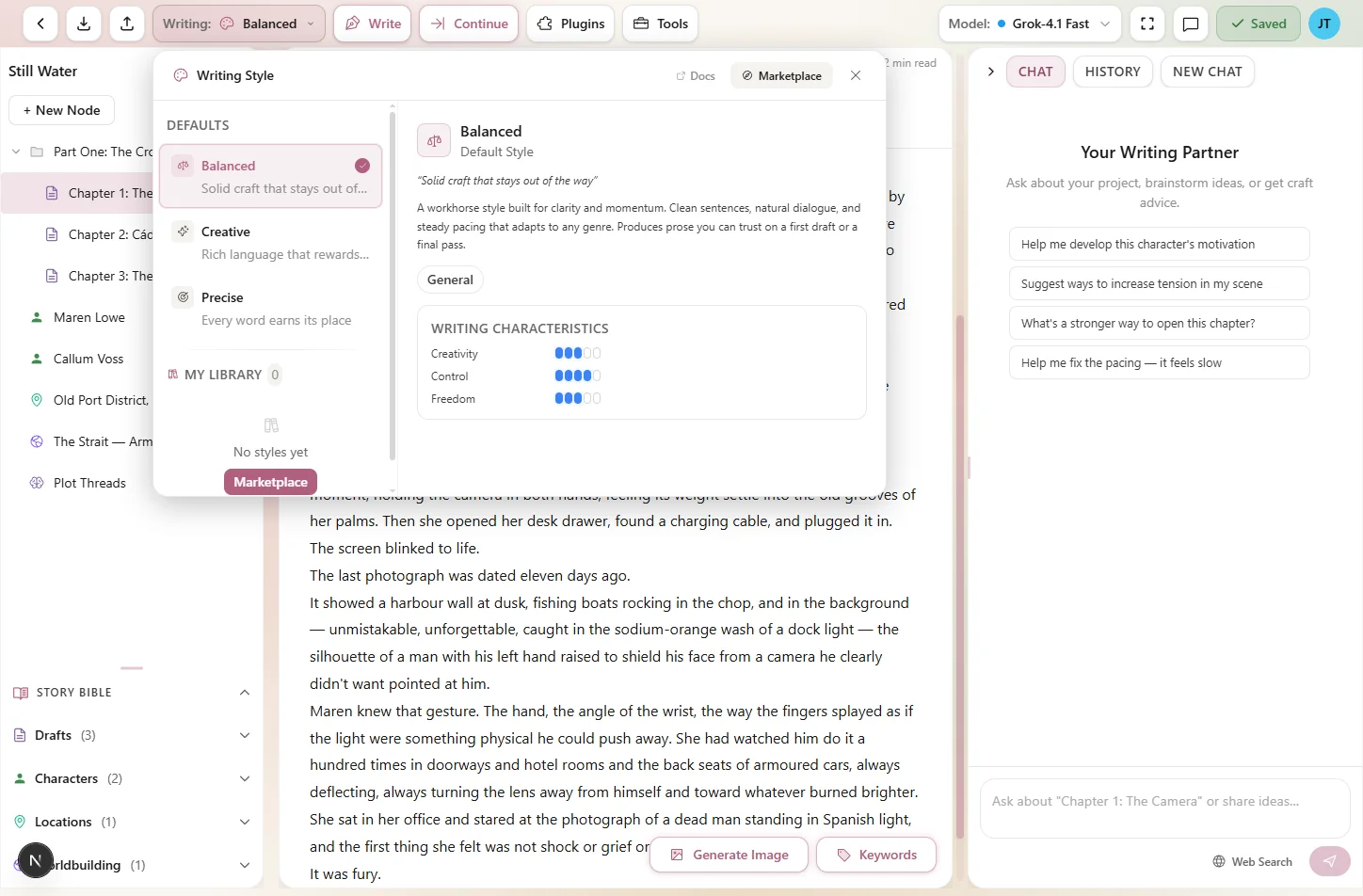
Click any style to apply it — your selection persists until you change it
Where Styles Apply
Styles affect every AI generation feature in Genesis Writer:
| Feature | Style Applied? |
|---|---|
| Prose Chat writes or continues | Yes — shapes new prose generation |
| Rewrite | Yes — rewrites selected text in the style's voice |
| Expand | Yes — expands selected text with style-consistent detail |
| Describe | Yes — generates descriptions matching the style's prose texture |
| Polish | Yes — applies the style's preferences during cleanup |
| Plugin execution | Yes — plugins inherit the active style |
Ready to start using styles? Head to Using Preset Styles to browse and apply your first style, or jump to Creating Custom Styles if you want to build your own.