Selection Tools
Rewrite, Expand, and Describe — transform selected text with AI.
Last updated October 2026
Overview
Selection tools let you transform text you've already written. Instead of adding new prose at the end of your draft (like asking Chat to write or continue), these tools work on text you select — replacing it with a new version that's rewritten, expanded, or enriched with sensory detail.
There are three selection tools: Rewrite, Expand, and Describe. Each serves a different purpose, but they all follow the same workflow: select text, pick a tool, then insert the result from the chat.
How to Use Selection Tools
- Select text in the editor by clicking and dragging, or using Shift+Arrow keys.
- A floating toolbar appears near your selection with the available tools.
- Click a tool (Rewrite, Expand, or Describe) to trigger the AI transformation.
- The result appears as a card in the assistant chat, where you can read it and insert it into your draft.
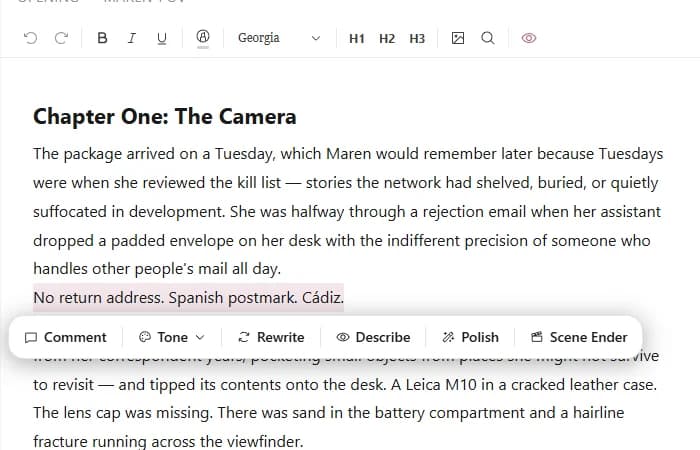
Select text to reveal the floating toolbar with AI transform options
Rewrite
Rewrite takes your selected text and rewrites it from scratch with a fresh perspective. The meaning stays the same, but the wording, sentence structure, and phrasing change.
Use Rewrite when:
- A passage feels awkward or clunky and you can't figure out why
- You want to see a different way to express the same idea
- The prose feels flat and needs fresh energy
- You've revised a paragraph too many times and lost perspective
The AI reads the surrounding context to match your voice, so the rewritten text fits naturally with the rest of your draft.
Expand
Expand takes your selected text and makes it longer and more detailed. It adds depth, specificity, and richness without changing the core meaning.
Use Expand when:
- A scene feels rushed and needs more breathing room
- You wrote a summary and want to turn it into a full scene
- An emotional moment deserves more weight and attention
- You need to hit a word count target and certain sections feel thin
Expand is smart about what it adds. It won't just pad your text with filler — it looks at the context and adds details that are relevant to the scene, characters, and moment.
Describe
Describe enriches your selected text with sensory details. It's designed specifically for making scenes more vivid, immersive, and tangible. Unlike Rewrite and Expand, Describe gives you fine-grained control over what kind of detail to add.
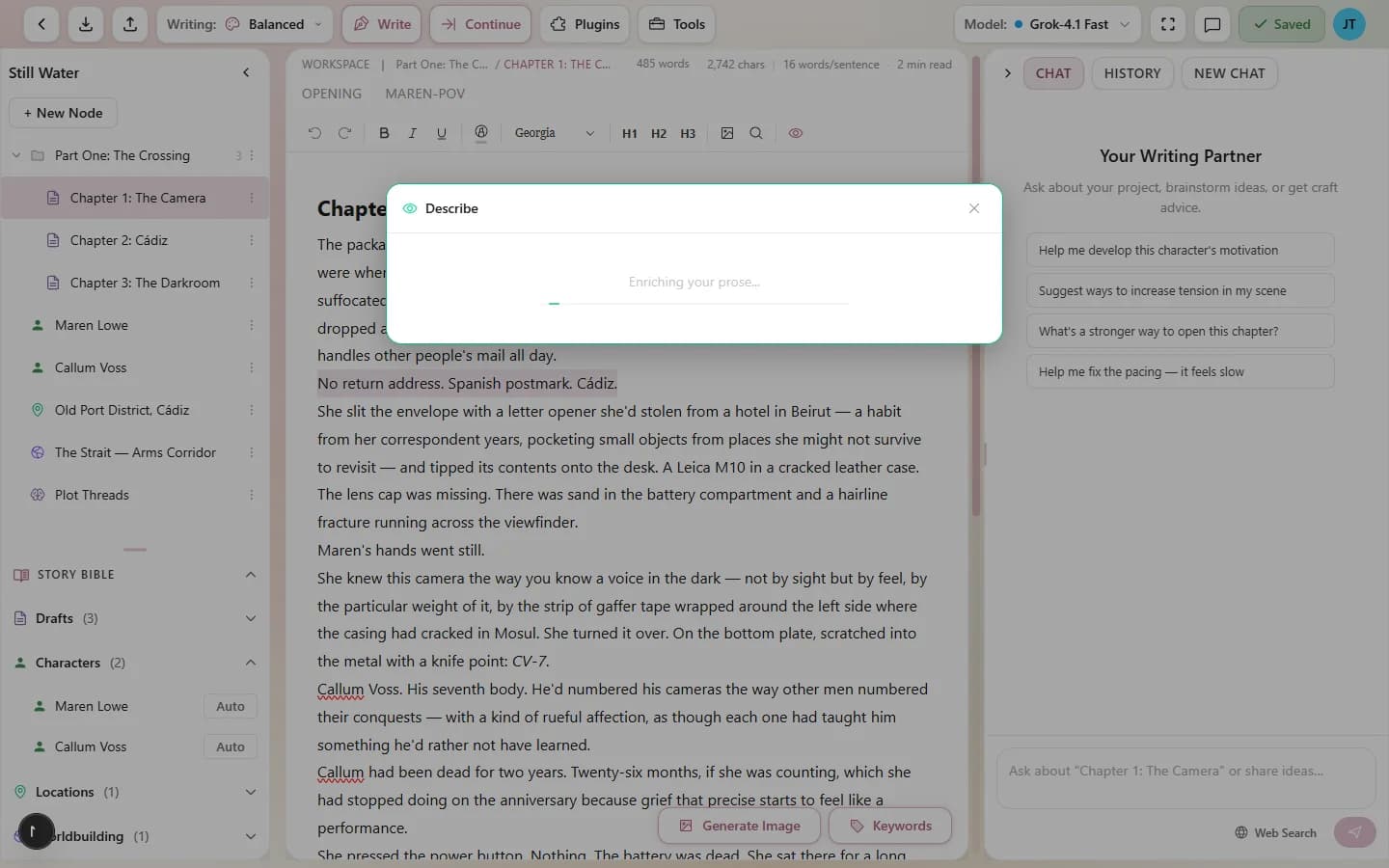
Describe gives you precise control over sensory detail
Describe Options
When you click Describe, a dialog appears with three settings:
Focus Type controls what kind of detail the AI emphasizes:
- Balanced — a mix of all detail types. Good default.
- Sensory — what the characters see, hear, smell, taste, and feel.
- Emotional — inner feelings, body language, emotional atmosphere.
- Action — movement, physicality, kinetic energy.
- Atmosphere — mood, setting, environmental details.
Intensity controls how much detail is added:
- Subtle — a light touch. Adds detail without changing the pace.
- Moderate — a balanced amount. Enriches without overwhelming.
- Vivid — full sensory immersion. Dense, rich, cinematic prose.
Senses lets you choose which specific senses to focus on:
- Sight, Sound, Smell, Taste, Touch
You can select one, several, or all senses. This is useful when you want a scene that specifically emphasizes sound (a thunderstorm) or smell (a bakery).
Context Awareness
All three selection tools pass the surrounding text to the AI along with your selected passage. This means the AI knows what comes before and after your selection, so the replacement text matches the voice, tense, point of view, and pacing of the surrounding prose.
If you have a writing style active, it's applied to the transformation too. The replaced text will follow the same style rules as the rest of your draft.
Reviewing the Result
Selection-tool results now arrive as a card in the assistant chat rather than replacing your text in place: read the transformation, then insert it into your draft when you're happy with it. Tokens are finalized against the generation's actual usage.
Every change — from a selection tool or your own edits — is recorded in the Activity tab, where you can see a word-level diff of exactly what changed.
Tips for Selection Tools
- Select generously. Give the AI enough surrounding text to work with. Selecting a full paragraph usually produces better results than selecting a single sentence.
- Chain tools together. Rewrite a passage, then Expand the result, then Describe to add sensory detail. Each transformation builds on the last.
- Combine with Polish. After expanding or describing, a Polish pass tightens the prose and fixes any rough edges.
- Use Rewrite to break writer's block. If you're stuck on a paragraph, write a rough version and Rewrite it. Seeing an alternative often unsticks your own thinking.
- Describe is scene-specific. It works best on narrative passages. Using it on dialogue or internal monologue can produce odd results.