Find & Replace
Search your draft and replace text with literal or whole-word matching.
Last updated March 2026
Overview
Find & Replace lets you search through your draft and optionally replace matches with new text. It works on the currently open Draft node and supports case-sensitive and whole-word matching.
Whether you're renaming a character, fixing a recurring typo, or just trying to find that one paragraph you wrote yesterday, Find & Replace gets you there quickly.
Opening Find & Replace
Open Find & Replace with Ctrl+F (Cmd+F on Mac). A search bar appears at the top of the editor with fields for your search term and replacement text.
Press Escape or click the close button to dismiss the search bar. All search highlights are cleared when you close it.
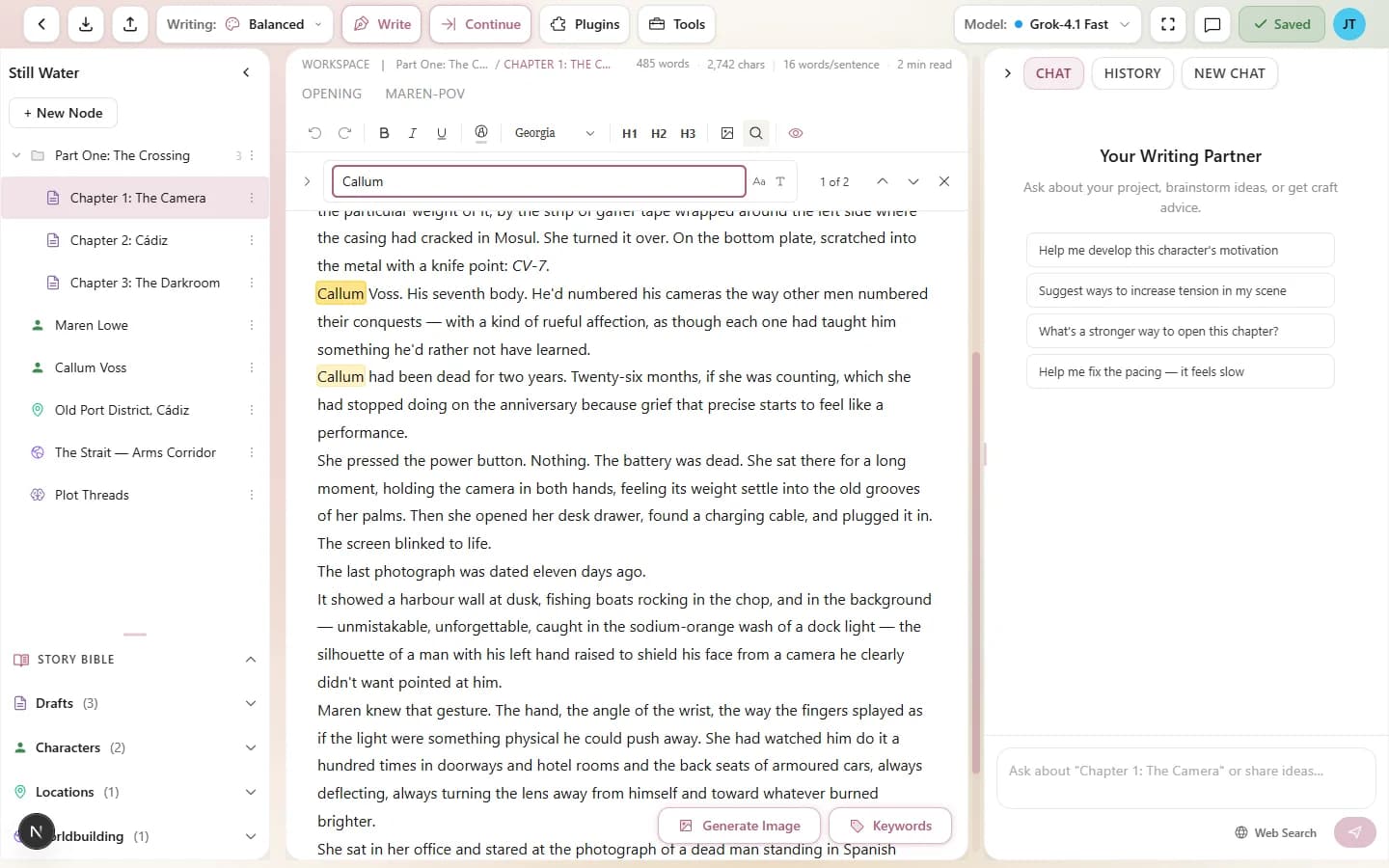
The Find & Replace bar — search, navigate, and replace
Finding Text
Type your search term in the search field. Matches are highlighted in real time as you type — you don't need to press Enter. The editor scrolls to the first match automatically.
A match counter shows how many matches were found, displayed as “X of Y matches” (for example, “3 of 12 matches”). This tells you both which match you're currently viewing and the total count.
Search Options
Case Sensitive
Toggle case-sensitive search to distinguish between uppercase and lowercase letters. When off (the default), searching for “the” matches “the,” “The,” and “THE.” When on, only exact-case matches are found.
This is useful when you need to find a specific proper noun without matching the common word version — for example, finding the character name “Will” without matching every instance of “will.”
Whole Word
Toggle whole word matching to only match complete words, not substrings. When on, searching for “art” matches the word “art” but not “heart,” “start,” or “artist.”
Combine case-sensitive and whole-word matching for precise searches. This is especially helpful when replacing character names or specific terms that might appear as parts of other words.
Navigating Matches
Use the Previous and Next buttons (or their keyboard shortcuts) to jump between matches. The editor scrolls to each match as you navigate, and the match counter updates to show your current position.
Navigation wraps around — clicking Next on the last match takes you back to the first match, and clicking Previous on the first match takes you to the last.
Replacing Text
Enter your replacement text in the Replace field. Then click the Replace button to replace the currently highlighted match. The editor automatically advances to the next match after each replacement.
This one-at-a-time approach lets you review each replacement individually — important when you only want to change some instances of a word, not all of them.
Replace All
Click Replace All to replace every match in the draft at once. The match counter updates to show zero matches remaining, and a brief confirmation tells you how many replacements were made.
Tips
- Rename characters safely. Use whole-word + case-sensitive matching when renaming a character. Search for the old name, replace with the new one. This avoids accidentally changing words that contain the name as a substring.
- Audit overused words. Search for common crutch words like “just,” “really,” “very,” or “that.” The match counter tells you how many times each word appears in your draft.
- Fix recurring typos. If you consistently misspell a word or name, Replace All fixes every instance in one click.
- Find your place. If you remember a specific phrase from yesterday's writing session, use Find to jump straight to it instead of scrolling.
- Search scope is per-draft. Find & Replace only searches the currently open Draft node. If you need to search across your entire project, check each draft individually.