Style Pipeline & Templates
How multi-stage style templates work under the hood.
Last updated October 2026
Overview
This is the advanced guide to how writing styles work internally. If you're building custom styles with multi-stage pipelines or want to understand exactly how styles shape AI output, this is your reference.
What Is a Pipeline?
A style pipeline is a sequence of AI processing stages. Instead of sending your text through a single prompt, styles pass it through multiple stages — each one transforming, analyzing, or refining the output before the next stage takes over.
Think of it like an assembly line for prose. Stage 1 might generate raw creative text. Stage 2 refines the rhythm and cadence. Stage 3 polishes word choice. The final stage's output is what appears in your editor.
Pipelines can have 1 to 4 stages. Simple styles often use just one stage with a well-crafted system prompt. Complex styles use multiple stages for sequential refinement.
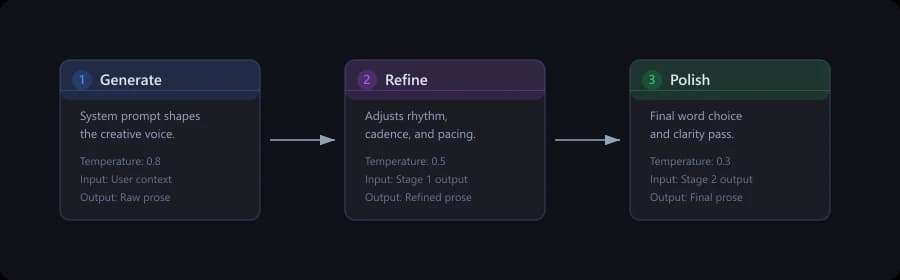
Each stage processes the output from the previous one — building refined prose step by step
Stage-by-Stage Flow
Here's exactly what happens when you generate text with a multi-stage style active:
- Stage 1 receives the user's text context (preceding text, selected text, etc.) and the user's instructions. It runs its system prompt and user prompt, producing an output.
- Stage 2 receives everything Stage 1 received, plus Stage 1's output via the
{stage_output}variable. It runs its own prompts and produces a new output. - Stage 3 (if it exists) receives the same base context plus Stage 2's output in
{stage_output}. And so on. - The final stage's output is the generated text you get back — for example, the prose on the card Chat returns.
Worked example: the Lean flagship
The Lean flagship voice ships with a two-stage pipeline. Looking at it is the fastest way to understand when multi-stage actually helps:
- Stage 1 — Draft (temp 0.45): writes a continuation using Lean's voice example and the user's preceding text. Produces a first attempt aimed at sparse-prose voice, but model gravity toward “literary AI prose” lets some ornament slip through.
- Stage 2 — Tighten (temp 0.30): re-reads stage 1's output via
{stage_output}and edits it with explicit anti-ornament instructions — cut adverbs that duplicate the verb, cut metaphors that decorate rather than clarify, cut adjective stacks, drop mythic register. Preserve narrative content and dialogue exactly. Lower temperature keeps the edit conservative.
Token cost is roughly 1.7–2× a single-stage style. In live testing, single-stage Lean averages 10–12 words per sentence with occasional metaphor leakage; the Tighten pass drops that to 5–7 words per sentence with zero metaphors across three canonical prompts. The pass earns its tokens.
The voice example is its own injection layer
Independent of the stages, every style can carry an example prose passage (exampleProse) — a 200–4000 character sample of the target voice. The pipeline injects it ahead of every stage's system prompt as a few-shot voice anchor with a “match style, not content” guard. This is independent of how many stages your pipeline has, and it's the strongest stylistic lever in the system — models follow examples roughly 5–10× better than they follow rules at equivalent prompt length. See Creating Custom Styles » Voice Example.
Template Variables Reference
Template variables inject dynamic content from the user's project into your pipeline prompts. Wrap them in curly braces within your system or user prompts.
| Variable | Available In | Description |
|---|---|---|
{preceding_text} | All stages | Text before the cursor or selection in the active draft. |
{following_text} | All stages | Text after the cursor or selection. |
{selected_text} | All stages | The user's selected text. Empty when Chat writes new prose (no selection). |
{project_context} | All stages | Project metadata: title, genre, tone, themes, logline. |
{characters} | All stages | Character data: names, roles, traits, goals, backstory, voice profiles. |
{scene_info} | All stages | Current scene or chapter title and synopsis. |
{user_instructions} | All stages | The instructions the user typed when triggering generation. |
{story_context} | All stages | Full combined context from the node hierarchy and Story Bible. |
{stage_output} | Stage 2+ | Output from the previous pipeline stage. Not available in Stage 1. |
{stage_output} in Stage 1 will result in an empty string since there is no previous stage. Always use it in Stage 2 or later.Context Types Injected
The template variables pull from several context sources. Understanding what data flows into each variable helps you write better prompts.
Project Context
Injected via {project_context}. Includes the project's title, genre, overall tone, thematic keywords, and logline. This gives the AI a high-level understanding of what kind of story is being written.
Character Context
Injected via {characters}. Pulls from the Story Bible and includes each character's name, role (protagonist, antagonist, supporting, etc.), personality traits, goals, backstory summary, and voice profile. This is how the AI keeps characters consistent.
Scene Context
Injected via {scene_info}. Contains the current Draft node's title and synopsis. If the node doesn't have a synopsis, this will be minimal. Writing clear synopses for your draft nodes improves AI output across all styles.
Text Context
Injected via {preceding_text}, {following_text}, and {selected_text}. These are the raw text from the editor. Preceding text is automatically trimmed to stay within context window limits.
Per-Stage Settings
Each stage in a pipeline has its own independent settings:
| Setting | Range | Purpose |
|---|---|---|
| Temperature | 0.0 – 2.0 | Controls randomness. Lower values produce more predictable, focused output. Higher values introduce more variety and creativity. |
| Top P | 0.0 – 1.0 | Nucleus sampling threshold. At 0.9, the AI considers only the top 90% of probable tokens. Most users leave this at the default. |
| Max Tokens | 512 – 8,192 | Maximum output length for this stage. Intermediate stages can use lower limits since their output is context, not final prose. |
A common pattern is to use a higher temperature in early creative stages and a lower temperature in later refinement stages. For example: Stage 1 at temperature 0.9 for creative generation, Stage 2 at temperature 0.4 for precise polishing.
Model Locks
By default, each stage uses whatever AI model the user has selected in the toolbar. But you can lock a stage to a specific model — forcing it to use that model regardless of the user's selection.
This is useful when you know a particular model excels at a specific task:
- Lock an analysis stage to a model that's great at understanding prose structure.
- Lock a generation stage to a model known for creative, surprising output.
- Lock a polish stage to a model that follows editing instructions precisely.
Security & Sanitization
The template engine includes built-in security measures to prevent prompt injection. These protections run automatically. You don't need to add your own sanitization to pipeline prompts — the template engine handles it.
Common Pipeline Patterns
Here are some proven pipeline architectures you can use as starting points:
Single-stage (simplest):
- Stage 1: One well-crafted system prompt that defines voice, tone, and style rules. The user prompt uses
{preceding_text}and{user_instructions}.
This is all most styles need. A focused, specific system prompt with good examples can produce remarkably consistent output.
Two-stage (generate + refine):
- Stage 1 (temp 0.85): Generate creative prose with high temperature for variety.
- Stage 2 (temp 0.45): Refine the output for rhythm, word choice, and consistency using
{stage_output}.
This is the most popular multi-stage pattern. It separates the creative and editorial passes, giving you the best of both worlds.
Three-stage (analyze + generate + polish):
- Stage 1 (temp 0.3): Analyze the existing text for tone, pacing, and style patterns. Output a brief analysis (low max tokens).
- Stage 2 (temp 0.75): Generate new prose informed by the analysis in
{stage_output}. - Stage 3 (temp 0.4): Polish the generated prose for final quality.
This pattern excels at style-matching — making the AI continue in the same voice as existing text rather than imposing a fixed voice.
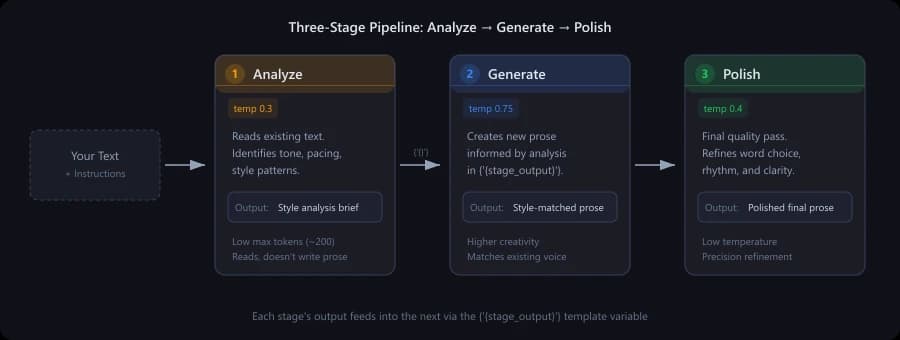
A three-stage pipeline: analyze existing text, generate matching prose, then polish the result
Debugging Tips
When a custom style isn't producing the output you expect, try these debugging approaches:
- Test each stage in isolation. If you have a 3-stage pipeline, temporarily delete stages 2 and 3 and test stage 1 alone. Then add stage 2 back and test. This helps you find which stage is causing issues.
- Check your variable usage. Make sure you're using the right variables in the right stages. A common mistake is using
{stage_output}in Stage 1 (where it's empty). - Lower the temperature. If output is too random or inconsistent, drop the temperature by 0.1–0.2 increments until you find the sweet spot.
- Be more specific in system prompts. Vague instructions produce vague output. Add concrete examples of the prose style you want.
- Watch your max tokens. If an intermediate stage's output is getting cut off, increase its max token limit. Truncated intermediate output degrades downstream stages.
- Try different models. Some models respond better to certain prompt styles. If one model isn't cooperating, try another before rewriting your prompts.
For help creating your first custom style, see Creating Custom Styles. To understand how AI generation and context building work more broadly, read How AI Generation Works and Context Building & Story Bible.