Creating Custom Styles
Build your own writing style with the multi-step creation wizard.
Last updated October 2026
Overview
Custom styles let you define exactly how the AI writes. Instead of choosing from presets, you craft your own voice profile — from vocabulary and rhythm to tone and pacing — using a multi-stage prompt pipeline. This is the most powerful way to make the AI sound like you.
The creation wizard walks you through five steps: Intent, Basics, Prompts, Illustration, and Publish. You can go back and forth between steps at any time.
Before You Start
Before diving into the wizard, it helps to know what you want your style to do. Ask yourself:
- What genre am I writing in?
- What authors or books have the voice I'm aiming for?
- Do I want dense, lyrical prose or lean, stripped-down sentences?
- How much figurative language should the AI use?
- Should the style favor action or interiority?
You don't need perfect answers. The wizard can help you generate prompts from a free-text description. But the clearer your vision, the better your style will be.
Step 1: Intent
The Intent step is your starting point. You have two options:
- AI-assisted: Describe your style in free text (10–1,000 characters). For example: “A dark, atmospheric noir style with short sentences, cynical humor, and vivid city descriptions. Think Raymond Chandler meets modern literary fiction.” Genesis Writer uses AI to generate pipeline prompts from your description.
- Manual: Skip AI generation and write your own prompts from scratch in Step 3. This gives you full control from the beginning.
If you choose AI-assisted, you'll also pick which AI model generates your style prompts. The model you select here is only used for generating the initial prompts — it doesn't lock your style to that model.
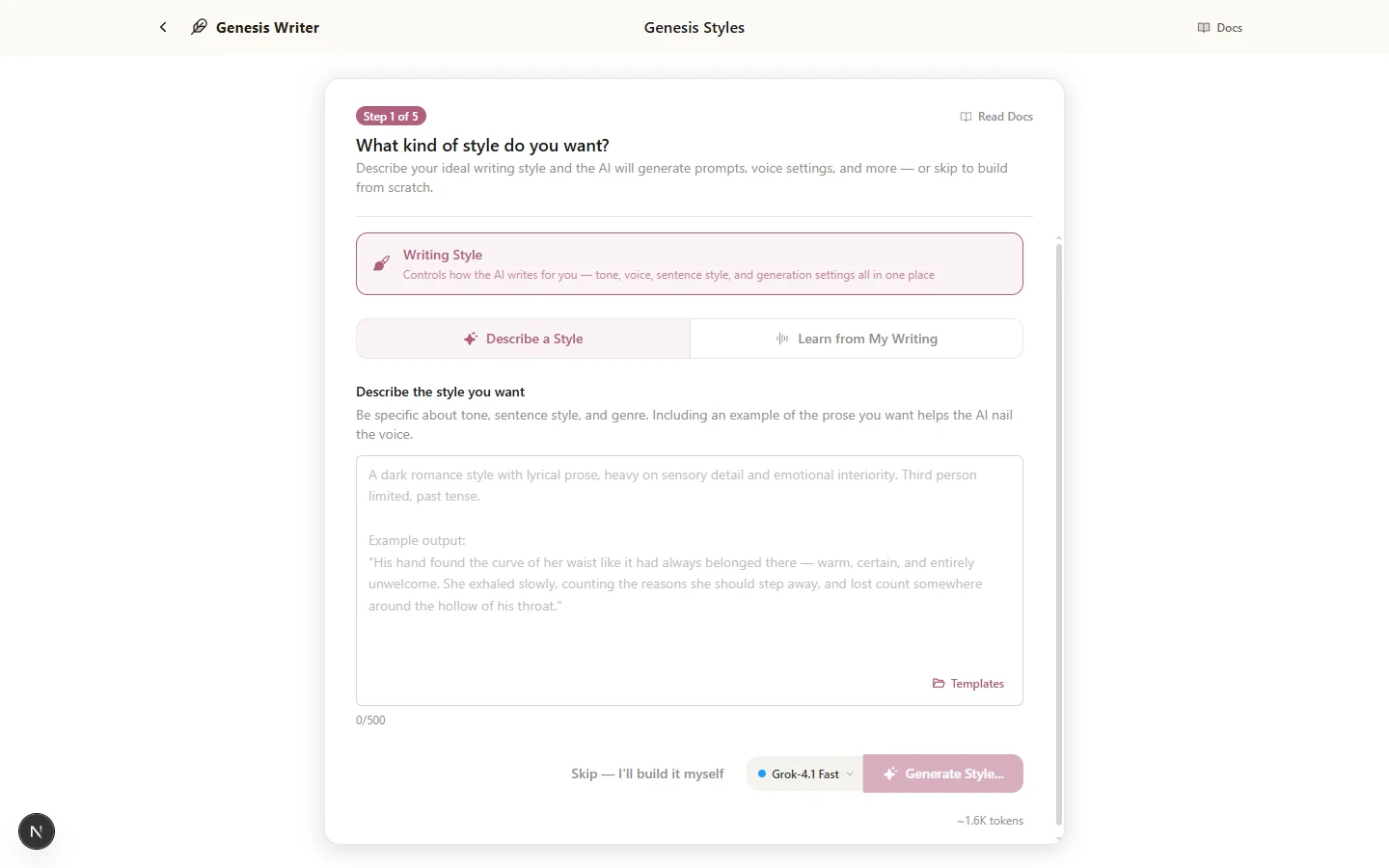
Describe your ideal style in plain language — the AI generates prompts from your vision
Boilerplate Starters
Click the Boilerplates button in the text area to choose from six genre-specific descriptions, each structured to produce high-quality pipeline prompts. Available boilerplates:
- Noir Thriller — clipped sentences, cynical narration, rain-soaked atmosphere.
- Cozy Romance — warm pacing, internal feelings, slow-burn tension.
- Epic Fantasy — sweeping prose, archaic flourishes, rich world-building.
- Literary Minimalist — spare and precise, every word earns its place.
- Cosmic Horror — clinical language that fractures under unknowable dread.
- Witty First Person — snappy monologue, dry humor, self-aware narration.
Each boilerplate includes four key sections: Sentence style (rhythm and structure rules), Vocabulary (word choice guidelines), Tone (emotional register), and a concrete Example of the voice in action. Here's the Literary Minimalist boilerplate:
Spare, precise prose where every word earns its place. Short
declarative sentences. No adverbs. Show through action and
object, never tell.

Sentence style: Average 8-12 words. Declarative.
Subject-verb-object. No subordinate clauses unless absolutely
necessary. Let white space carry emotional weight.

Vocabulary: Common words used with precision. Prefer "said"
over any alternative. Concrete nouns over abstractions.

Tone: Restrained. Emotion lives in what's left unsaid — in
the gap between what characters do and what they feel.

Example:
"He set the glass down. The ring it left on the table was
still wet when she walked out."
This structure gives the AI clear, actionable constraints instead of vague descriptions like “write in a literary style.” The more specific you are about sentence rhythm, word choice rules, and tone, the more consistent your style will be across different models and content types.
Step 2: Basics
The Basics step captures metadata about your style. This information shows up on your style card and helps users (including you) understand what the style does at a glance.
| Field | Details |
|---|---|
| Category | Choose from 9 genre categories: Romance, Fantasy, Thriller, Literary, Sci-Fi, Horror, Mystery, General, or Experimental. |
| Name | Your style's name. Max 100 characters. Make it evocative — “Midnight Ink” tells you more than “My Style 1.” |
| Tagline | A one-liner that captures the style's personality. Max 200 characters. |
| Description | A longer explanation of what the style does to prose. Max 2,000 characters. |
| POV Preference | Any, First Person, Second Person, Third Person Limited, or Third Person Omniscient. “Any” lets the AI match whatever POV is in the draft. |
| Tense | Any, Past Tense, or Present Tense. “Any” lets the AI match the draft's existing tense. |
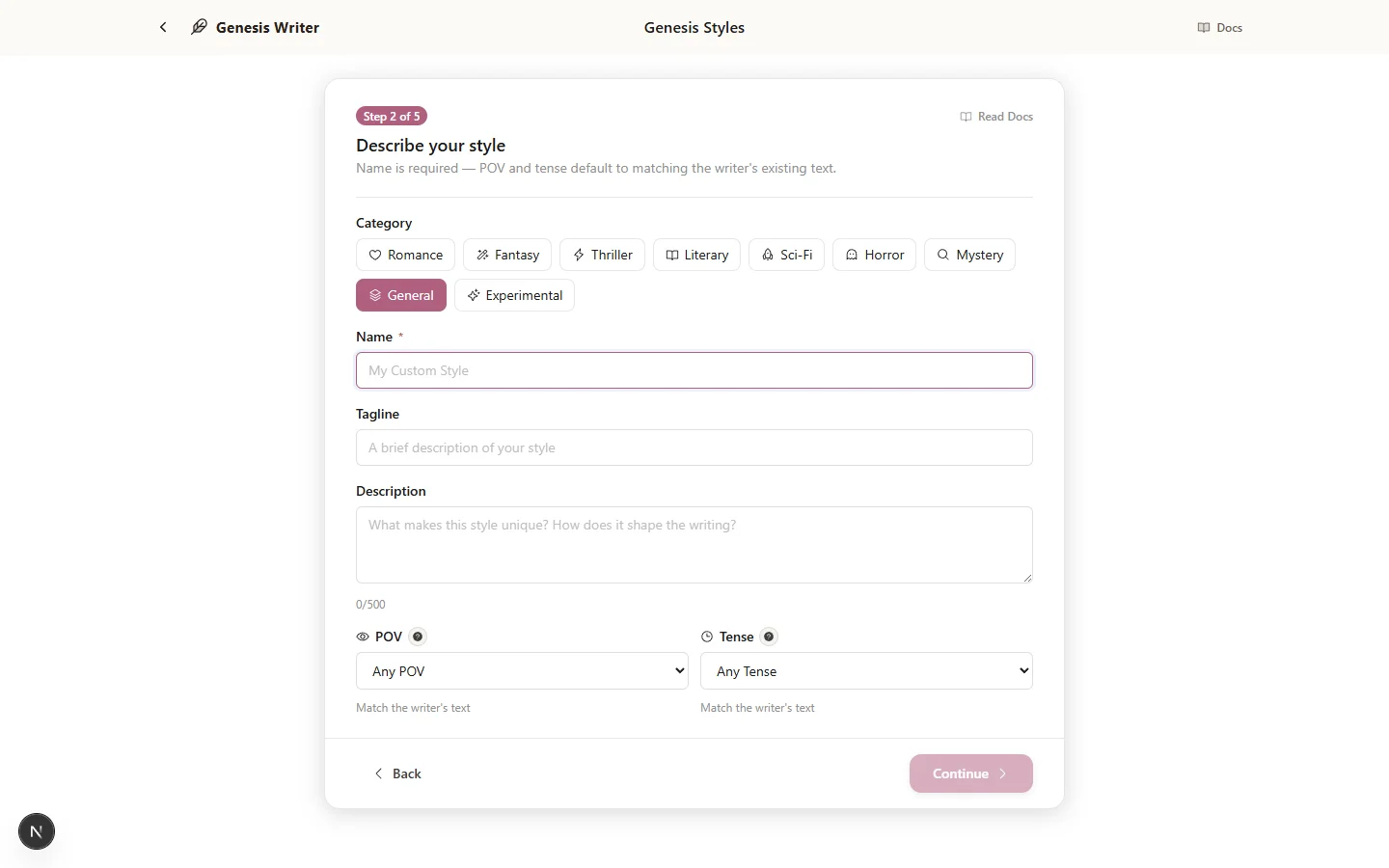
Fill in the metadata that describes your style — this shows up on the style card
Step 3: Prompts
This is the heart of custom style creation. The Prompts step is where you define the multi-stage pipeline that shapes your AI's output. If you used AI-assisted Intent, you'll see pre-generated prompts here that you can review and edit.
Each stage in the pipeline is an AI prompt that processes text sequentially. Stage 1 runs first, then Stage 2 receives Stage 1's output, and so on. Most custom styles use 1–4 stages.
Each stage has two prompts:
- System prompt — sets the AI's role and behavior for this stage. Think of it as the “who you are” instructions.
- User prompt — the specific task for this stage. This is where you use template variables to inject story context.
Template Variables
Template variables let you inject dynamic content from the user's project into your prompts. Wrap them in curly braces:
| Variable | What It Contains |
|---|---|
{preceding_text} | The text before the cursor or selection in the draft. |
{following_text} | The text after the cursor or selection. |
{selected_text} | The currently selected text (for Rewrite, Expand, etc.). |
{project_context} | Project metadata — title, genre, tone, themes, logline. |
{characters} | Character information — names, roles, traits, goals, backstory, voice. |
{scene_info} | Current scene title and synopsis. |
{user_instructions} | Any instructions the user gave when asking Chat for prose. |
{stage_output} | The output from the previous pipeline stage (not available in Stage 1). |
{story_context} | Combined story context built from the node hierarchy and Story Bible. |
{preceding_text}, {user_instructions}, and {stage_output}. Start with these and add more as you refine your pipeline.Stage Settings
Each stage has independent settings that control how the AI behaves:
- Temperature (0.0–2.0) — controls randomness. Lower is more predictable, higher is more creative.
- Top P (0.0–1.0) — nucleus sampling threshold. Most users leave this at the default.
- Max tokens (512–8,192) — the maximum length of the stage's output.
You can also optionally lock a model for a specific stage. This forces that stage to use a particular AI model regardless of what the user has selected in the toolbar. This is useful when you know a specific model excels at a particular task (e.g., Claude for literary analysis, GPT for dialogue).
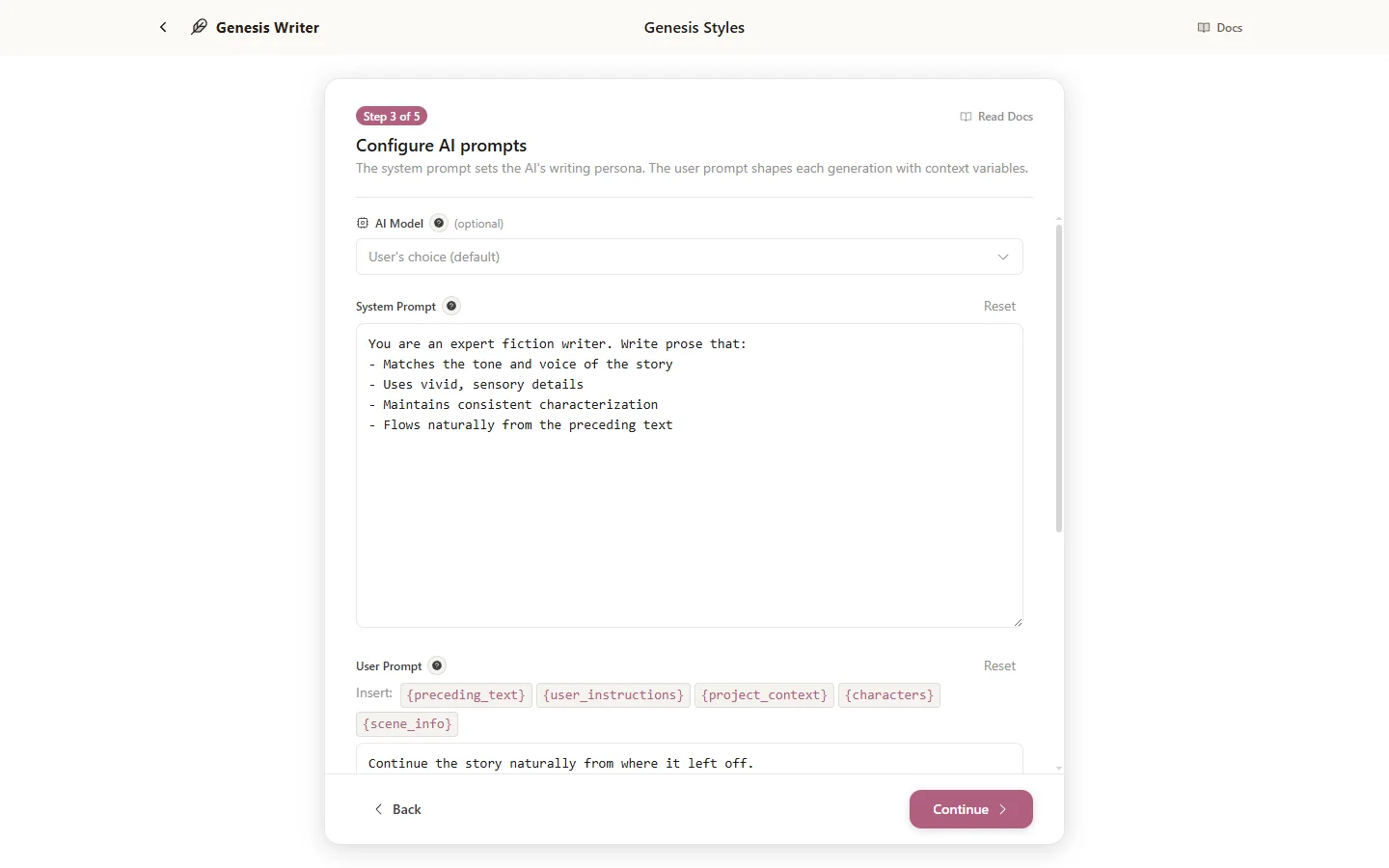
Build your pipeline stage by stage — each stage processes text and passes output to the next
Voice Example (Your Strongest Lever)
Below the user prompt, you'll find the Voice Example field. This is an optional 200–500 word passage of prose in the voice you want your style to produce. Pasting an example is the single highest-leverage thing you can do to make your style behave the way you imagine it.
At generation time, the example is injected ahead of your system prompt as a few-shot voice anchor. Models follow examples roughly 5–10x more reliably than they follow rules at equivalent prompt length. A 300-word block of voice prose beats a 300-word block of stylistic rules every time.
What to paste:
- Your own writing — the most powerful option. Paste a passage from your novel that captures the voice you want. The AI will write more like you.
- Public-domain prose — Hemingway, Hardy, Wharton, Joyce, anything out of copyright. Match the era and register you're targeting.
- A passage you wrote specifically as a target — spend 30 minutes writing the kind of paragraph you wish the AI would produce. That paragraph teaches the model more than 1,000 words of rules could.
What NOT to paste: copyrighted prose from named authors. The publishing UI requires you to confirm you have the rights to the example before saving, and styles flagged for verbatim copying of known authors' work will be removed from the marketplace.
Step 4: Illustration
Every style card in Genesis Writer has an illustration that captures its mood. In this step, click the card tile to open the image studio and give your style its own.
Describe the scene (e.g., “a detective standing under a streetlight in the rain”) and pick a style: our Genesis Painted house style — a realistic painted look in a quiet, muted palette — or Cinematic, Painterly, Illustration, Anime or Comic. You can also upload your own picture.
Each generated illustration uses one AI image from your plan's monthly allowance (paid plans). This step is optional — you can add an illustration later.
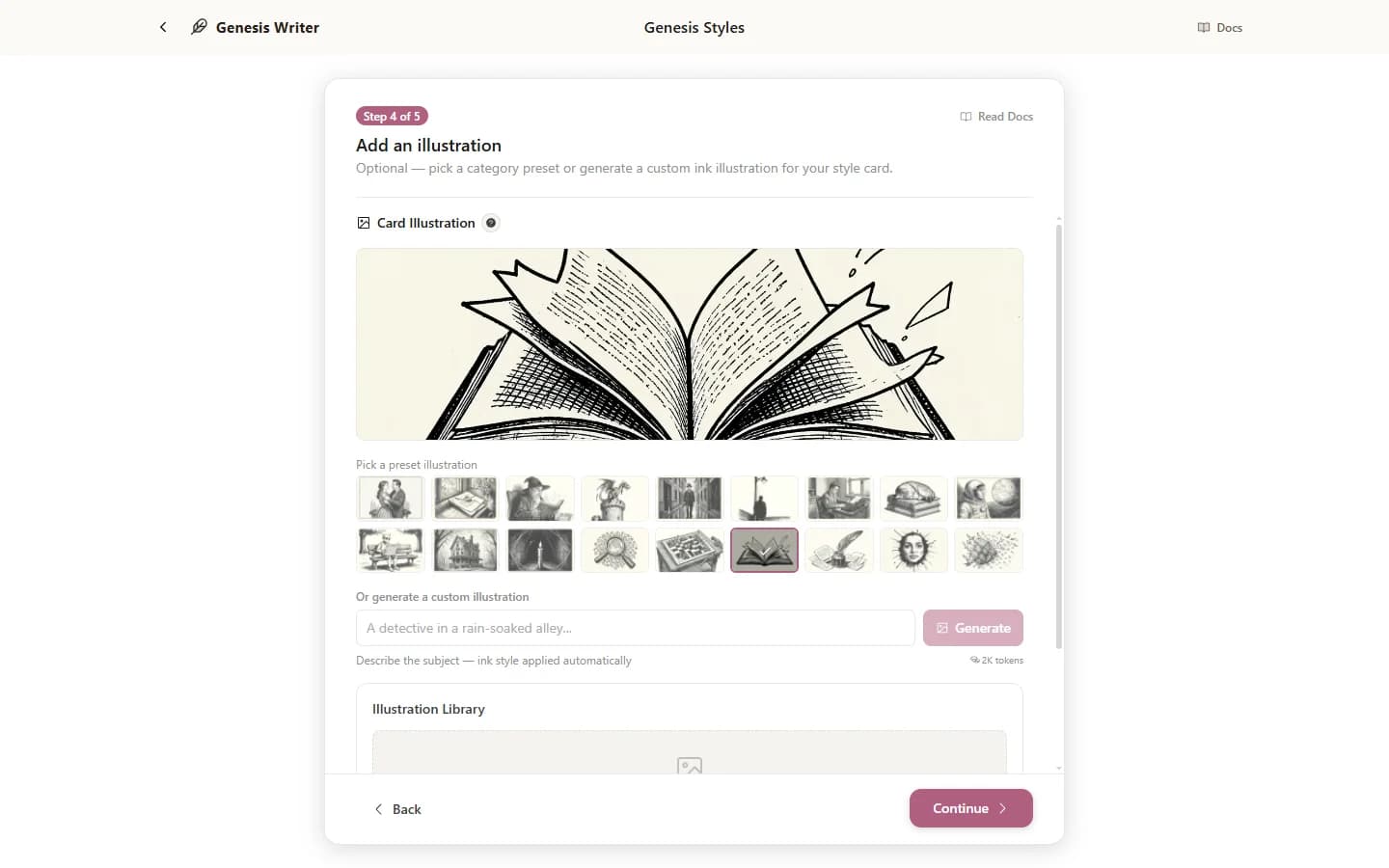
Optional: generate or upload a unique illustration for your style card
Step 5: Publish
The final step controls who can see and use your style:
| Setting | Options |
|---|---|
| Visibility | Private — only you can see and use it. Public — visible on the marketplace for anyone to find (paid plans only). |
| Prompt Visibility | Hidden — other users can use your style but can't see the prompts. Visible — other users can read your pipeline prompts (great for teaching and sharing knowledge). |
Click Create Style to finish. Your style is immediately available in your Style selector and, if set to Public, on the marketplace.
Testing Your Style
After creating your style, test it thoroughly before sharing or relying on it for a project:
- Select your new style from the Style Selector.
- Ask Chat to write and continue a few passages with different types of content — action scenes, dialogue, description, introspection.
- Try it with different AI models to see how each interprets your prompts.
- Use Test Prompts in the Prompts step (edit the style to reopen it) to check the output as you adjust.
- Adjust prompts, temperature, and token limits as needed. Iterate until it feels right.
Editing After Creation
You can edit your custom styles at any time. Navigate to the style's detail view and click Edit. The same wizard opens with all your existing settings, so you can tweak prompts, update metadata, regenerate the illustration, or change visibility.
Edits take effect immediately. Any future generations using the style will use the updated pipeline.
Tips for Great Custom Styles
- Start simple. A single-stage style with a well-written system prompt can be remarkably effective. Add stages only when you need sequential processing.
- Be specific in your system prompts. “Write in a noir style” is vague. “Write in short, clipped sentences. Use present tense. Favor concrete sensory detail over abstract description. Cynical first-person voice. No purple prose.” That's specific.
- Use example prose. Include a short example of the voice you want in your system prompt. The AI will pattern-match against it.
- Test with your actual project. Don't just test with generic text. Paste real passages from your manuscript and see how the style handles your characters, settings, and plot.
- Iterate ruthlessly. The best custom styles go through many rounds of refinement. Tweak a word in the prompt, regenerate, compare. Small changes compound.
For a deep dive into how pipelines work and what template variables are available, read Style Pipeline & Templates. To share your finished style with other writers, see Style Marketplace.