Using Preset Styles
Browse and apply the built-in voices and the curated preset styles.
Last updated October 2026
Overview
Genesis Writer ships with three flagship voices — Lean, Lyrical, and Voice-Driven — plus Neutral, the default, which applies no styling at all (your voice, untouched), and a set of curated preset styles that cover the major fiction genres and common writing jobs. Each style has been carefully designed to produce prose with a distinct voice and rhythm — a romance style writes differently from a horror style, and the three flagship voices write differently from one another in ways a reader can identify at a glance.
Presets are the fastest way to get high-quality, voice-appropriate AI output. You don't need to build anything or write any prompts. Just browse, pick a style that fits your story, and start generating.
The three flagship voices
- Lean — plain words, short sentences, physical action over interior monologue. The Hemingway / Carver / early-McCarthy tradition. Runs a two-pass pipeline (Draft + Tighten) to keep ornament out.
- Lyrical — long sinuous sentences, sensory accumulation, mythic register. The Marilynne Robinson / late-McCarthy / Toni Morrison tradition. Reaches for what almost cannot be said.
- Voice-Driven — a narrator with a pulse. Conversational, self-aware, comedic timing under hard subject matter. The Saunders / Sedaris / Lockwood tradition.
Each flagship style ships with a voice example — a sample passage you can read by hovering the style in the Style Selector before applying it. If you can't feel the difference between the three from the example alone, the style abstraction has failed. Reading the examples is the fastest way to pick the right one for your project.
Genre Categories
Preset styles are organized into nine genre categories. Each category contains multiple styles with different personalities — you won't find a single “Fantasy” style, but several Fantasy styles ranging from epic to cozy to grimdark.
| Category | What to Expect |
|---|---|
| Romance | Emotional depth, character interiority, sensory chemistry, pacing built around relationships. |
| Fantasy | Rich worldbuilding language, mythic cadence, atmospheric description, epic scope. |
| Thriller | Short punchy sentences, tension-building pacing, cliffhanger instincts, urgency. |
| Literary | Precise language, layered metaphor, thematic resonance, introspective voice. |
| Sci-Fi | Technical vocabulary, speculative detail, conceptual clarity, futuristic texture. |
| Horror | Dread-building pacing, sensory unease, atmospheric tension, restraint over shock. |
| Mystery | Clue planting, misdirection, observational detail, investigative rhythm. |
| General | Versatile styles that work across genres — clean prose, strong defaults. |
| Experimental | Unconventional structures, voice-driven prose, rule-breaking, avant-garde texture. |
Anatomy of a Style Card
Every style is displayed as a card with several elements that help you understand what the style does before you apply it:
- Name — a short, evocative label (e.g., “Lean,” “Velvet Dagger,” “Starforge”).
- Tagline — a one-line description of the style's voice.
- Voice example (flagship styles) — a sample passage of prose in the style. The single best signal for what you'll get.
- Illustration — a unique picture in our Genesis Painted house style that captures the style's mood.
- Category — the genre category the style belongs to.
- Description — a longer explanation of what the style does to your prose.
Browsing Styles
There are two places to browse preset styles:
- The Style Selector in the writer toolbar — click the style name in the toolbar to open the selector. You'll see the built-in styles, the styles you've added, and a Find more styles link to the marketplace.
- The Marketplace — navigate to the Style Marketplace from the main navigation. The marketplace shows every public style, with search, category filters, and tabs.
The marketplace is where you search by name, filter by category, and switch between the Featured, Newest, Liked, Added, and Yours tabs.
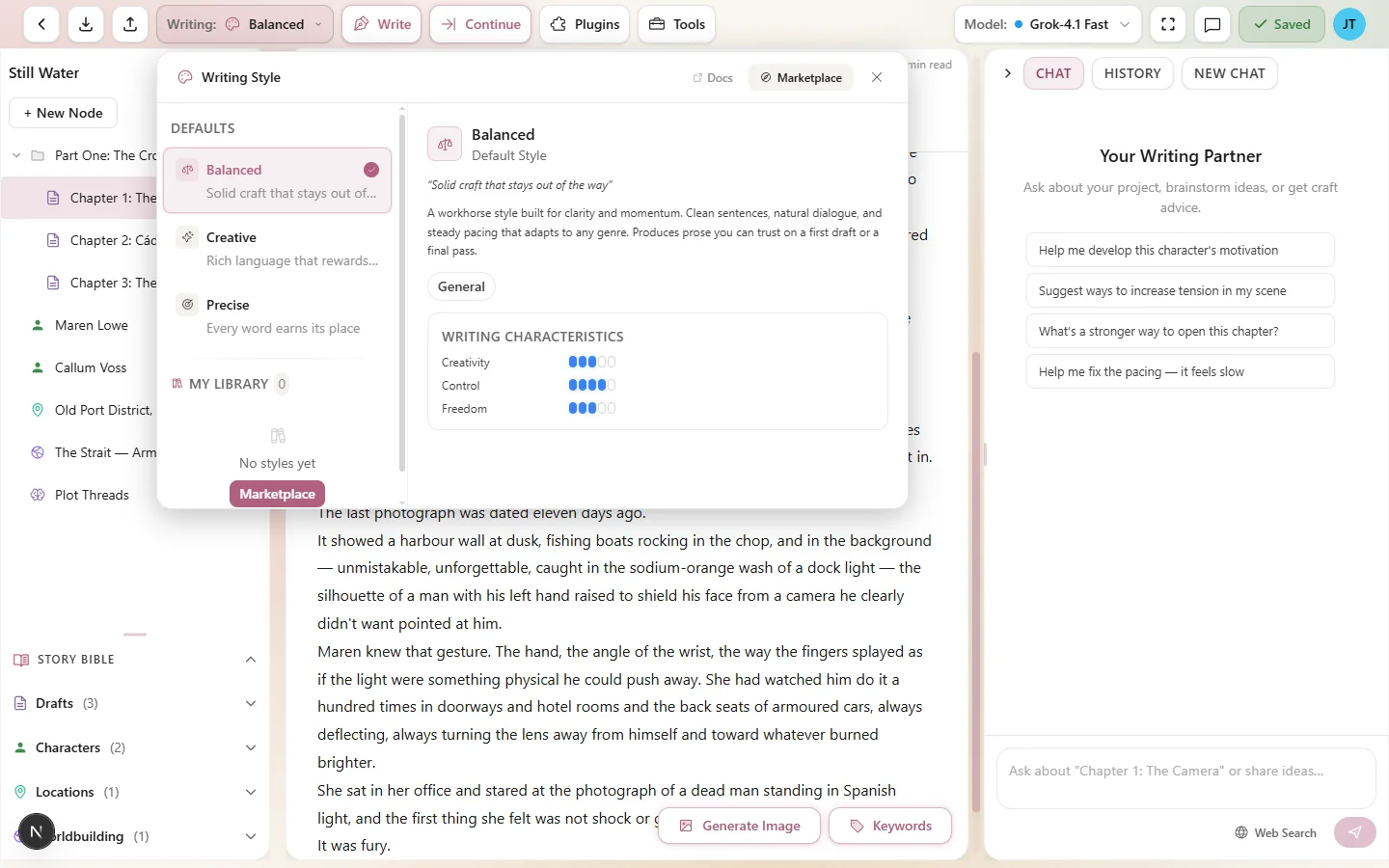
Browse styles directly from the writer toolbar without leaving your draft
Applying a Style
Applying a style takes one click:
- Open the Style Selector from the writer toolbar.
- Hover a style to read its sample and description. Nothing changes until you click.
- Click the style to apply it. The selector closes.
Lean shows 2× tokens in the list: it writes a draft and then tightens it, so each generation costs about twice as much as a single-pass style.
That's it. The style is now active. All subsequent AI generations — prose Chat writes or continues, Rewrite, Expand, plugins — will use the selected style's voice profile until you change it.
Previewing a Style
Not sure if a style is right for your story? Preview it before committing:
- In the Style Selector, hover the style to read its sample passage.
- On the marketplace, click the style's card to open its detail view, which shows the full sample.
- Add the style, pick it, and write a short scene. Switching back is one click.
When you build your own style, the creation wizard's Prompts step also has a Test Prompts button, which runs your prompts before you save. See Creating Custom Styles.
Adding Styles
When you find a style you like on the marketplace, add it for quick access. Added styles appear under Added in the Style Selector, so you don't have to go back to the marketplace every time.
To add a style, click the Add button on the style's card or detail view. You can remove it later if your tastes change.
What you add is personal — other writers can't see what styles you've added. Think of it as your bookshelf of favorite voices.
Switching Between Styles
You can change styles at any point during your writing session. This is especially useful when different parts of your story call for different voices:
- Use a tense, clipped style for action scenes.
- Switch to a lyrical, descriptive style for atmospheric passages.
- Drop into a precise, minimal style for dialogue-heavy chapters.
- Switch to a creative, high-temperature style when you're exploring.
Switching is instant — just open the Style Selector and click a different style. There's no delay, no restart, and no effect on text you've already generated or written.
Tips for Choosing a Style
- Read the voice example. The flagship styles all show a sample passage when you hover them in the Style Selector. Read it. If it reads like prose you'd want to write, the style will produce more of it. This is the single best signal you have.
- Match school to story. Lean fits hard-edged contemporary fiction and crime; Lyrical fits long-form literary, historical, and Southern-Gothic; Voice-Driven fits first-person, comic, or memoir-adjacent work. Mismatches feel off — a Voice-Driven paragraph in a sparse crime novel will yank the reader out.
- Match genre to preset. For the genre presets, start with the one that matches your story's genre category. A romance preset in a horror novel (or vice versa) can produce jarring results.
- Test before you commit. Preview the style, then write a short scene from your actual project with it. A generic sample won't tell you how the style handles your characters and setting.
- Don't settle. With three flagship voices, the presets, and the ability to create your own, there's no reason to stick with a style that doesn't feel right.
- Mix and match. Some writers use one style for drafting and another for editing passes. Lean is excellent for a tightening pass on prose that came out too ornate; Lyrical is excellent for re-drafting flat passages with more sensory weight.
Want to build a style from scratch? Head to Creating Custom Styles. Or browse the full collection on the Style Marketplace.