Locations & Worldbuilding
Build and manage the settings and worlds of your story.
Last updated October 2026
Overview
Location nodes describe the places where your story happens. A crumbling Victorian mansion, a bustling space station, a quiet park bench in autumn — every setting that matters to your narrative can have its own Location node with atmosphere, sensory details, and significance to the plot.
The real power of Location nodes is their integration with the AI. When the AI generates prose and your characters are in a specific place, it pulls in the location's details automatically through the Story Bible. This means your settings stay consistent across scenes without you having to re-describe them every time.
Creating a Location Node
Create a Location node from the left panel:
- Click the + button at the top of the node tree.
- Select Location from the type menu.
- Name it after the place (e.g., “The Lighthouse,” “Marcus's Apartment,” or “Ironhold Citadel”).
You can create locations at any point in your writing process. Some writers set up all their key locations before writing Chapter 1. Others create them as new settings appear in the story.
The Location Editor
When you select a Location node, the center panel opens a specialized editor designed for building rich setting descriptions.
Location Fields
The Location editor provides structured fields to capture different dimensions of a place:
| Field | What to Write |
|---|---|
| Name | The location's name as it appears in your story. |
| Type | The kind of place (city, building, room, wilderness, etc.). |
| Description | A general description of the location. What does it look like? What's its character? |
| Atmosphere | The mood and feeling of the place. Is it oppressive? Serene? Chaotic? Describe how it makes characters feel. |
| Details | Freeform prose for sensory details, geography, architecture, history, and anything else that defines this place. |
| Significance | Why this place matters to the story. What happens here? What does it represent? |
You don't need to fill in every field. Even a name and a short description give the AI useful context. Add more detail as your story develops and the location becomes more important.
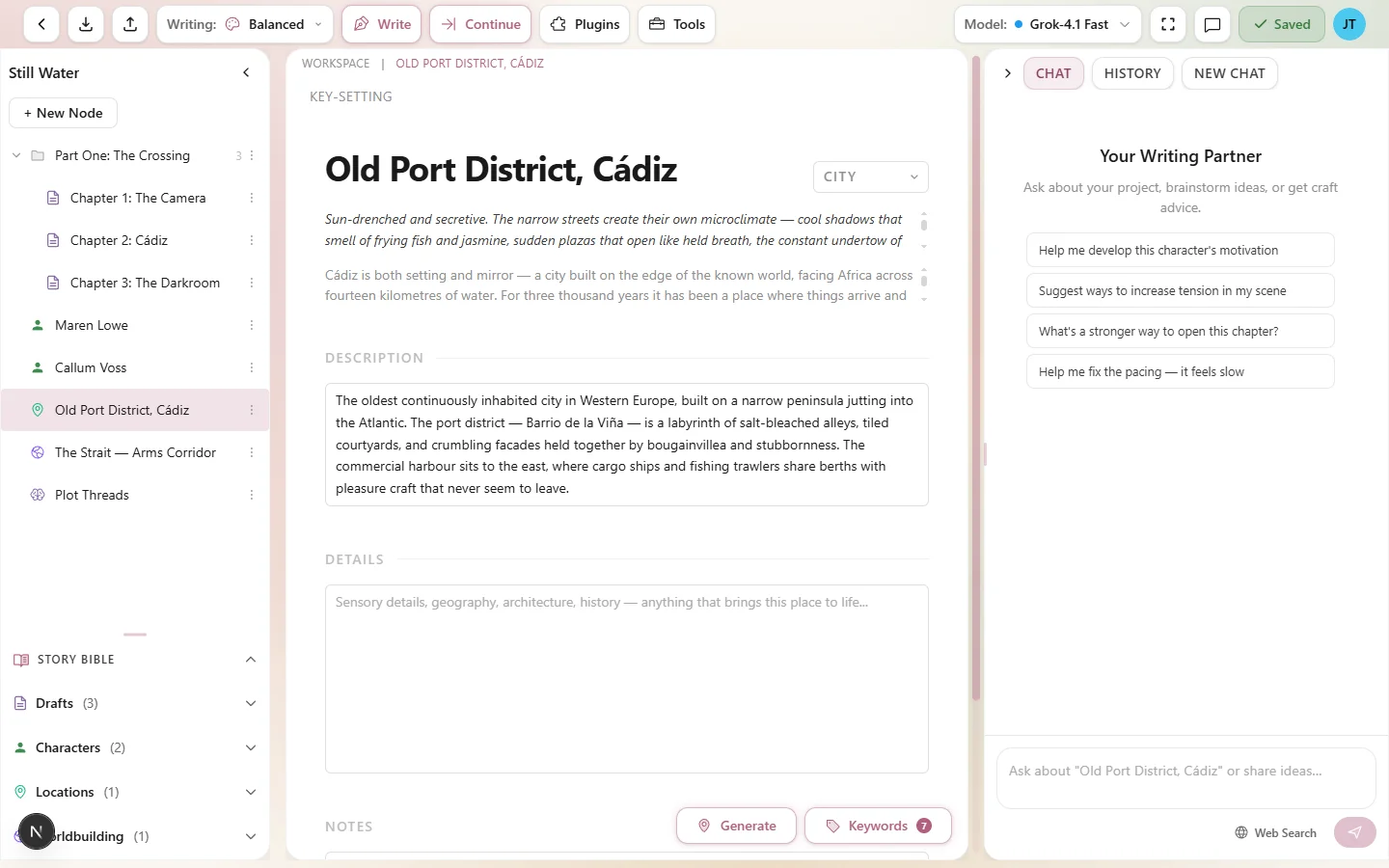
The Location editor — capture every dimension of a setting
Location Types
The type field categorizes your location:
- City — a major urban area.
- Town — a smaller settlement.
- Village — a small rural community.
- Building — a specific structure (house, castle, hospital, etc.).
- Room — a single room within a building.
- Wilderness — natural, undeveloped land (forests, mountains, deserts).
- Landmark — a notable geographic or architectural feature.
- Region — a broad area (a province, a stretch of coastline).
- Country — a nation or sovereign territory.
- World — an entire planet, realm, or dimension.
- Other — anything that doesn't fit the categories above.
The type is informational — it helps you organize your locations and gives the AI a quick sense of scale.
Sensory Details
Great settings are built from sensory details. The Details field is where you paint the picture of your location with specifics that a character would actually notice:
- Sights — what does the place look like? Colors, light, architecture, landscape.
- Sounds — what does it sound like? Silence, wind, crowds, machinery, birdsong.
- Smells — what does it smell like? Damp stone, salt air, wood smoke, perfume.
- Textures — what does it feel like to touch? Rough walls, smooth marble, gritty sand.
- Tastes — if applicable, what flavors does this place evoke?
When the AI generates a scene set in this location, it weaves these sensory details into the prose naturally. A location with rich sensory information produces noticeably better writing than one with just a name.
Locations & AI Context
Locations participate in the Story Bible system, which means the AI can automatically include a location's details when generating prose. This happens through two mechanisms: activation keywords and context priority.
Activation Keywords
Every Location node can have activation keywords — a list of words or phrases that, when they appear in your draft text, trigger the AI to include that location's context. For example, a location called “The Lighthouse” might have activation keywords like “lighthouse,” “the tower,” and “beacon.”
When you're writing a scene and the word “lighthouse” appears in your draft, the Story Bible matcher automatically includes the location's details in the AI's context. The AI then knows the atmosphere, sensory details, and significance of that place — without you having to mention them when you ask Chat for prose.
Context Priority
Each location has a context priority from 1 to 10. Higher priority locations are more likely to be included in the AI's context when space is limited. The default is 5.
Set higher priority (7–10) for locations that are central to your story — the protagonist's home, the villain's lair, the place where the climax happens. Leave less important locations at the default.
AI Location Generation
You can use the AI to help generate location descriptions from a prompt. Describe the place in broad strokes and the AI fills in atmosphere, sensory details, and thematic significance. This is especially useful when you know what a location needs to be but haven't figured out the specifics yet.
The generated description is a starting point. Edit and refine it to match your vision. The AI might suggest sensory details you hadn't considered, or find an atmospheric angle that fits your story perfectly.
The Worldbuilding Editor
For broader worldbuilding concepts that go beyond a single location — like the geography of an entire continent, the political structure of a kingdom, or the climate patterns of a planet — you can use Worldbuilding nodes alongside locations.
Locations describe specific places. Worldbuilding describes the world they exist in. Together, they give the AI a complete picture of your setting at both the macro and micro level.
Organizing Locations
How you organize locations in the node tree affects how the AI uses them. Here are two common approaches:
Centralized worldbuilding folder:
Worldbuilding (Folder)
  Locations (Folder)
    The Lighthouse (Location)
    Marcus's Apartment (Location)
    The Harbor District (Location)
  Worldbuilding (Folder)
    Tidal Magic System (Worldbuilding)
    City History (Worldbuilding)
Distributed by story section:
Act 1 (Folder)
  The Lighthouse (Location)
  Chapter 1 (Draft)
  Chapter 2 (Draft)
Act 2 (Folder)
  The Harbor District (Location)
  Chapter 3 (Draft)
  Chapter 4 (Draft)
The centralized approach keeps all worldbuilding in one place for easy reference. The distributed approach puts locations closer to the drafts that use them, which strengthens the AI context connection. Both work — choose the one that fits how you think.
Tips for Location Writing
- Write from a character's perspective. Don't describe a room objectively — describe what your protagonist notices when they walk in. What catches their eye? What makes them uncomfortable? This gives the AI a voice to channel when writing scenes in that location.
- Include the emotional weight. A location's significance field is one of the most useful for the AI. Knowing that “the lighthouse is where Elena's mother died” changes how the AI writes every scene set there.
- Keep it concise. The AI has limited context space. A focused, evocative paragraph is more useful than three pages of encyclopedic detail. Write the details that matter most to the story.
- Update locations as the story progresses. Places change in stories. A location that starts as safe might become dangerous. Update the atmosphere and description fields to reflect how the location evolves with the plot.
- Create locations for emotional spaces, not just physical ones. A character's childhood bedroom, a specific park bench, the corner booth at a diner — these intimate, emotionally charged spaces often matter more to your story than grand settings.
- Link locations to specific scenes. When you know a chapter takes place in a specific location, make sure the location node is near that draft in the tree or has activation keywords that match the text. This ensures the AI has the setting details it needs.