Project Structure & Nodes
How node types (Draft, Character, Location, Worldbuilding, Folder) organize your story.
Last updated October 2026
Overview
Every Genesis Writer project is organized as a tree of nodes. Nodes are the building blocks of your story — each one represents a specific piece of your project, whether that's a chapter, a character, a location, or a worldbuilding entry.
Your project is one list, in the order you choose. Folders are the only grouping: put drafts, characters, locations and worldbuilding into a folder, one level deep, or keep them at the top level. The structure you choose also affects how the AI understands your project, because it shapes what context gets included when you generate prose.
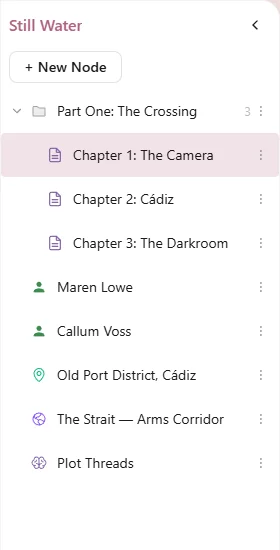
The node tree — your project's table of contents
Node Types
Genesis Writer has five node types, each designed for a specific purpose.
Draft
Draft nodes are where your actual writing lives. Each draft opens in the Draft Editor — the rich text editor with full AI integration. This is where you write chapters, scenes, sections, or any piece of prose.
Drafts are the only node type Chat can write or continue prose into. They also track word count, support autosave, and maintain their own undo/redo history.
Character
Character nodes hold everything about a character — identity, personality, backstory, motivations, and more. When a character is linked to a section of your project, the AI uses their profile data to write more consistent dialogue and behavior.
Character nodes have their own specialized editor with sections for identity (name, role, archetype, age, pronouns), appearance, personality, voice and dialogue, relationships, and backstory. Profiles are available on every plan; AI portraits come from your plan's monthly AI image allowance (one a month on Free).
Location
Location nodes describe the settings and places in your story. They include fields for the location name, type (city, building, wilderness, etc.), description, atmosphere, sensory details, and significance to the story.
Locations participate in the Story Bible — when their activation keywords appear in your draft, the AI automatically pulls in the location's details for richer, more consistent setting descriptions. Learn more in Locations & Worldbuilding.
Worldbuilding
Worldbuilding nodes store the rules, history, and background details of your story's world. Magic systems, political structures, cultural customs, historical timelines — anything the AI should know and respect when writing your story.
Like locations, worldbuilding entries use activation keywords for automatic Story Bible matching. When relevant terms appear in your draft, the AI references the worldbuilding entry to ensure consistency. See Worldbuilding Entries for details.
Folder
Folder nodes are pure containers. They have no content of their own — they exist only to organize other nodes. Use folders to group related nodes together, like collecting all your Act 1 chapters in a single “Act 1” folder, or keeping all your worldbuilding nodes in a “World” folder. Folders hold one level: a folder can't go inside another folder.
The Node Tree
All your nodes appear in the left panel as one list, with each folder's contents beneath it. The list is the primary way you navigate your project — click any node to open it in the center panel. New nodes are added at the bottom.
Drag & Drop
Reorder and restructure your project by dragging nodes in the tree. You can:
- Reorder — drag a node above or below others; a line shows where it will land.
- File into a folder — drop a node on the middle of a folder. Hold it there to open a closed folder.
- Take out of a folder — drag it below the folder's last item and pull left, or drop it between top-level nodes.
- Move between folders — drag a node from one folder into another.
From the keyboard, the arrow keys move through the list and open or close folders, and Alt+↑ / Alt+↓ move the current node, into and out of folders at their edges.
Right-Click Options
Right-click any node in the tree to see its context menu:
- Rename — change the node's title.
- Duplicate — create a copy of the node (including its content).
- Change type — convert a node to a different type (e.g., turn a Worldbuilding node into a Draft when you're ready to write).
- Change status — set the node's status to Draft, In Review, or Final.
- Move to trash — soft-delete the node. It moves to the trash and can be recovered later.
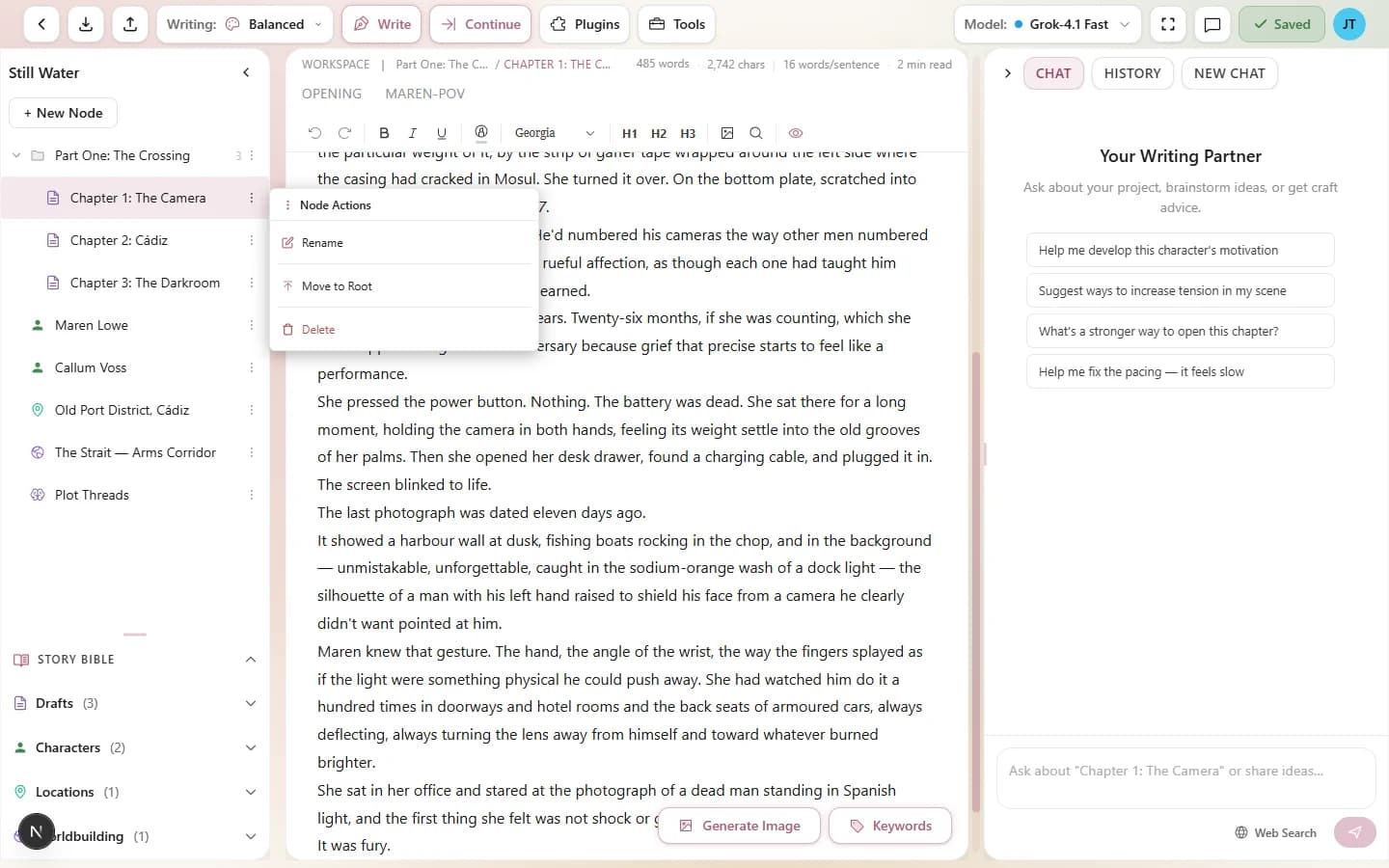
Right-click any node for quick actions
Node Statuses
Every node can have a status that tracks your progress:
| Status | When to Use |
|---|---|
| Draft | The node is a work in progress. This is the default status for all new nodes. |
| In Review | The content is written but needs revision, editing, or feedback. |
| Final | The node is complete. No more changes planned. |
Statuses are visual indicators in the node tree. They help you track which parts of your project are finished, which need attention, and which are still being written. Set a status from the right-click menu or the node's detail panel.
Tags
Nodes support tags for cross-cutting categorization. Tags let you mark nodes with labels that don't fit the tree hierarchy — things like “needs-research,” “key-scene,” “villain-arc,” or “flashback.”
You can add multiple tags to any node. Tags are freeform text, so use whatever naming convention works for your project.
Hierarchy & AI Context
Your node hierarchy isn't just for organization — it directly affects how the AI generates prose. When you ask Chat to write or continue a draft, the context builder looks at the surrounding nodes to assemble context for the AI:
- Sibling nodes — other nodes at the same level (previous and next chapters, nearby outlines).
- Parent nodes — the folder or container that holds the current draft, providing structural context.
- Character nodes — character data is included when characters are linked to the project.
- Story Bible entries — locations and worldbuilding that match activation keywords in your text.
This means a well-organized project produces better AI output. When your chapters are in order, your characters are properly profiled, and your worldbuilding nodes are nearby, the AI has the context it needs to write consistently.
Trash & Recovery
When you delete a node, it doesn't disappear immediately. It moves to the trash, where it stays until you permanently delete it or restore it.
Trashed nodes are hidden from the main tree but accessible from the trash view. You can:
- Restore a trashed node back to its original position in the tree.
- Permanently delete to remove it for good.
This safety net means you can reorganize aggressively without worrying about losing work. If you accidentally delete a chapter, it's in the trash waiting for you.
Best Practices
- Organize like a book. Folders for parts or acts, with a Draft node for each chapter inside. Characters, locations, and worldbuilding in their own folders, or at the top level. This mirrors the structure the AI expects and produces the best context.
- One chapter per Draft node. Don't put your entire novel in a single draft. Breaking chapters into separate drafts gives the AI better context for each one and makes your project easier to navigate.
- Use Folders generously. They're free, they have no content overhead, and they make big projects manageable. A three-act novel might have “Act 1,” “Act 2,” “Act 3,” “Characters,” and “Worldbuilding” as top-level folders.
- Keep worldbuilding near the drafts that use it. A location node kept in the same folder as the chapter it appears in is more likely to be included in AI context than one buried in a distant folder.
- Use statuses to track progress. Move chapters from Draft to In Review to Final as you work through them. It gives you a quick visual overview of where your manuscript stands.
- Start simple. You don't need every node type from day one. Many writers only use Draft and Character nodes. Add locations and worldbuilding as your project grows and you need them.