The Mobile Hub
Manage projects, browse the marketplace, and navigate with the bottom tab bar.
Last updated September 2026
The Mobile Hub is your home base — the first screen you see after logging in on mobile. It gives you quick access to your projects, the marketplace, your inbox, and account settings.
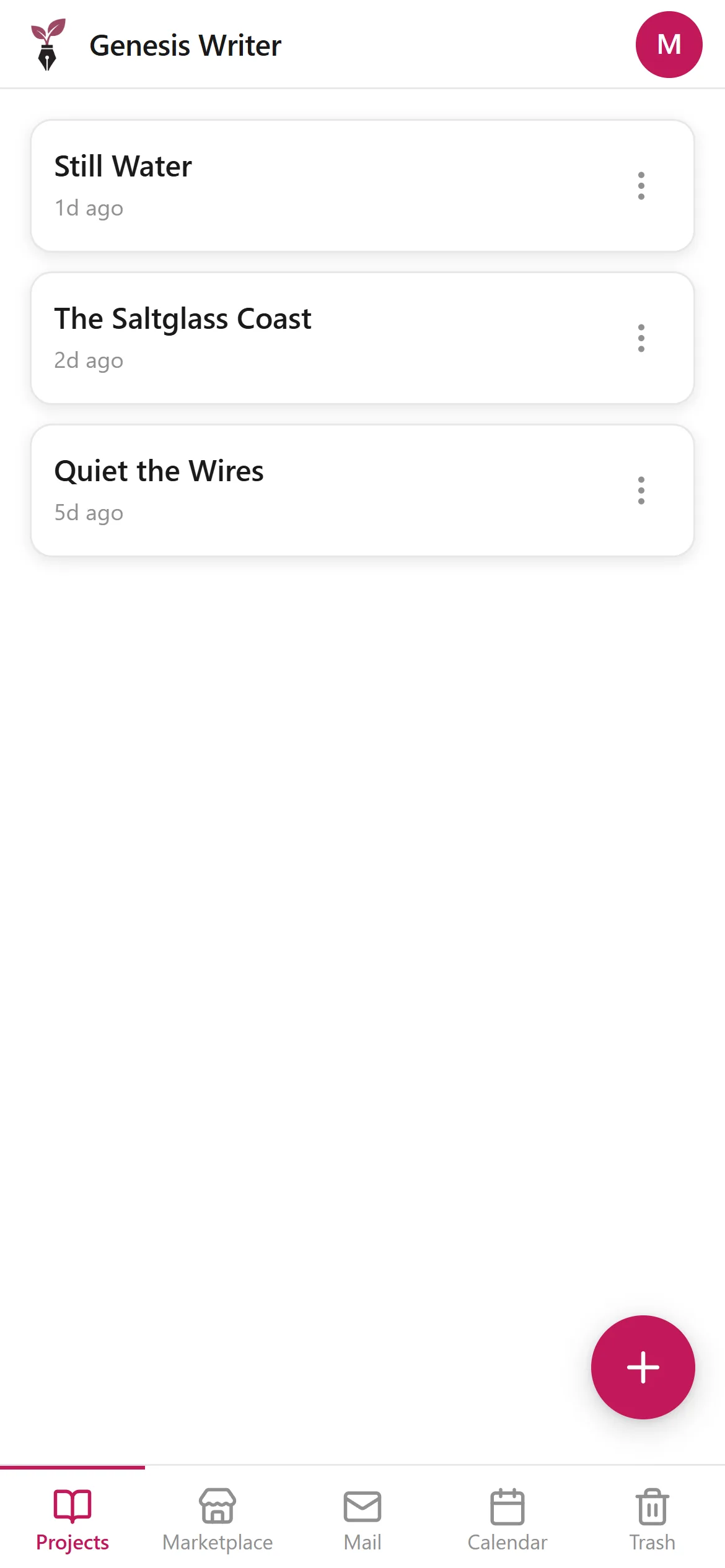
The mobile hub — your projects, the marketplace, and account, all from your phone
Bottom Navigation
The bottom tab bar is the primary way to navigate the hub. It has four tabs:
- Projects — your writing projects, sorted by last edited
- Marketplace — browse writing styles, plugins, and beta readers
- Inbox — notifications and messages
- Settings — account, subscription, and preferences
The active tab is highlighted with your accent color. Tap any tab to switch instantly.
The Projects Tab
Your projects appear as cards showing the project title, genre, last edited time, and a quick preview. Tap a project card to open it in the Mobile Writer.
Projects are sorted by most recently edited, so your active work is always at the top. Each card shows:
- Project title and genre badge
- Last edited timestamp
- Node count (how many drafts, characters, etc.)
The Marketplace Tab
The Marketplace tab lets you browse the Marketplace, organized into three categories:
- Writing Styles — custom writing styles that shape how the AI writes
- Plugins — AI-powered tools for transforming your text
- Beta Readers — AI personas that give targeted feedback on your writing
Tap a category to browse, then tap any item to see its full details. Items marked with a lock icon require a paid subscription.
The Inbox Tab
The Inbox shows notifications about your account — things like subscription updates, marketplace activity, and system announcements. Tap a message to read it, or swipe to dismiss.
Settings & Account
The Settings tab gives you access to:
- Account details — email, display name, and profile
- Subscription — view your current plan, manage billing, or upgrade
- Token balance — see your remaining Genesis Tokens
- Data export — export all your project data
- Theme — switch between light and dark mode
Creating Projects
Tap the floating + button at the bottom right of the Projects tab to create a new project. You'll enter a title and optionally choose a genre, then the project opens directly in the Mobile Writer.
Project limits follow your subscription plan — Free accounts can create up to 3 projects, while paid plans have unlimited projects.