The Mobile Writer
Write, edit drafts, and use AI generation in the mobile-optimized writer.
Last updated April 2026
The Mobile Writer is where you do your actual writing. It opens when you tap a project from the hub, and gives you a streamlined, touch-friendly interface for everything in your project.
Overview
The writer has a fixed header showing your project title (tap to rename) and a tabbed interface below it. Instead of the desktop's three-panel layout, everything is organized into swipeable tabs that feel natural on a phone.
Tap the info button in the top right to see an explanation of the Story Bible and how AI context toggles work.
Story Bible Tabs
The writer organizes your project into four tabs:
- Draft — your chapters and writing
- Character — character profiles
- Location — settings and places
- Worldbuilding — rules, history, magic systems, and lore
Swipe left or right to switch between tabs, or tap a tab name directly. Each tab shows all nodes of that type as a scrollable list of cards.
Node Cards
Each item in your project appears as a card showing:
- Title and type indicator
- A subtitle or description preview
- Word count (for drafts) and last edited time
- An AI context toggle (Auto, On, or Off) for story bible nodes
- Character portraits (if available)
Tap a card to open it in its full detail view. The AI context toggle can be tapped directly on the card without opening it — see Story Bible on Mobile for details.
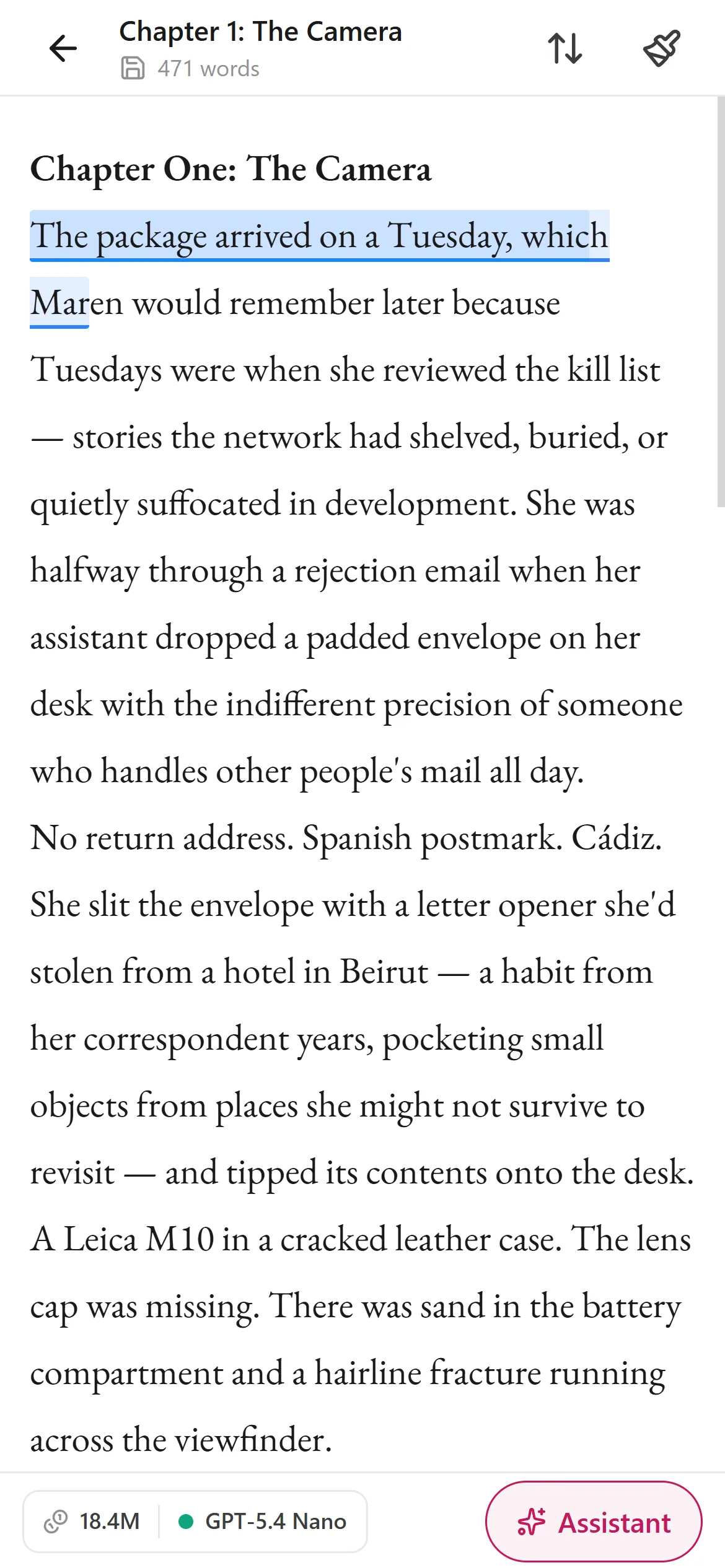
The mobile draft editor — distraction-free writing with a touch formatting bar
The Draft Editor
Tapping a draft opens a simplified, mobile-optimized editor. It uses a clean serif font (EB Garamond) that's comfortable to read and write with on a small screen.
The mobile editor supports:
- Free-form writing and editing
- Bold and italic formatting
- Auto-save (your work is saved continuously as you type)
- AI selection tools (rewrite, expand, describe, polish)
AI Generation
On mobile, AI prose generation lives in the assistant — the same chat experience as desktop. Tap Assistant in the draft editor's bottom bar (or the chat button on the project list) to open it, then ask the AI to write a scene, continue from where you left off, or brainstorm what happens next — and tap Insert into draft to drop the result into your chapter. It draws on the same context as desktop: your draft content, story bible entries, selected writing style, and project settings all inform the generation.
Inside the draft editor itself, select any passage to rewrite, expand, describe, or polish it with the selection tools.
Creating New Nodes
Tap the floating + button in the bottom right to create a new node of the currently active tab type. If you're on the Character tab, it creates a new character. On the Draft tab, a new draft. And so on.
The new node appears immediately in the list and you can tap it to start editing.
Managing Nodes
Long press any node card to move it to trash. A confirmation dialog appears first to prevent accidental deletion.
If your project has trashed nodes, a trash icon appears in the header. Tap it to view trashed nodes, where you can restore them or permanently delete them.
To rename your project, tap the project title in the header bar.