Story Bible on Mobile
Edit characters, locations, and worldbuilding entries with AI context controls.
Last updated September 2026
The Story Bible is the heart of how Genesis Writer keeps your story consistent. On mobile, you can fully edit all your characters, locations, and worldbuilding entries — and control exactly what the AI sees when it writes.
What Is the Story Bible?
Your Story Bible is the collection of characters, locations, and worldbuilding entries in your project. When the AI writes, it reads relevant entries from your Story Bible to keep names, personalities, settings, and world rules consistent across every chapter.
The first time you open a project on mobile, a welcome popup explains this concept and how the AI context toggles work. You can always reopen this explanation by tapping the info button in the writer header.
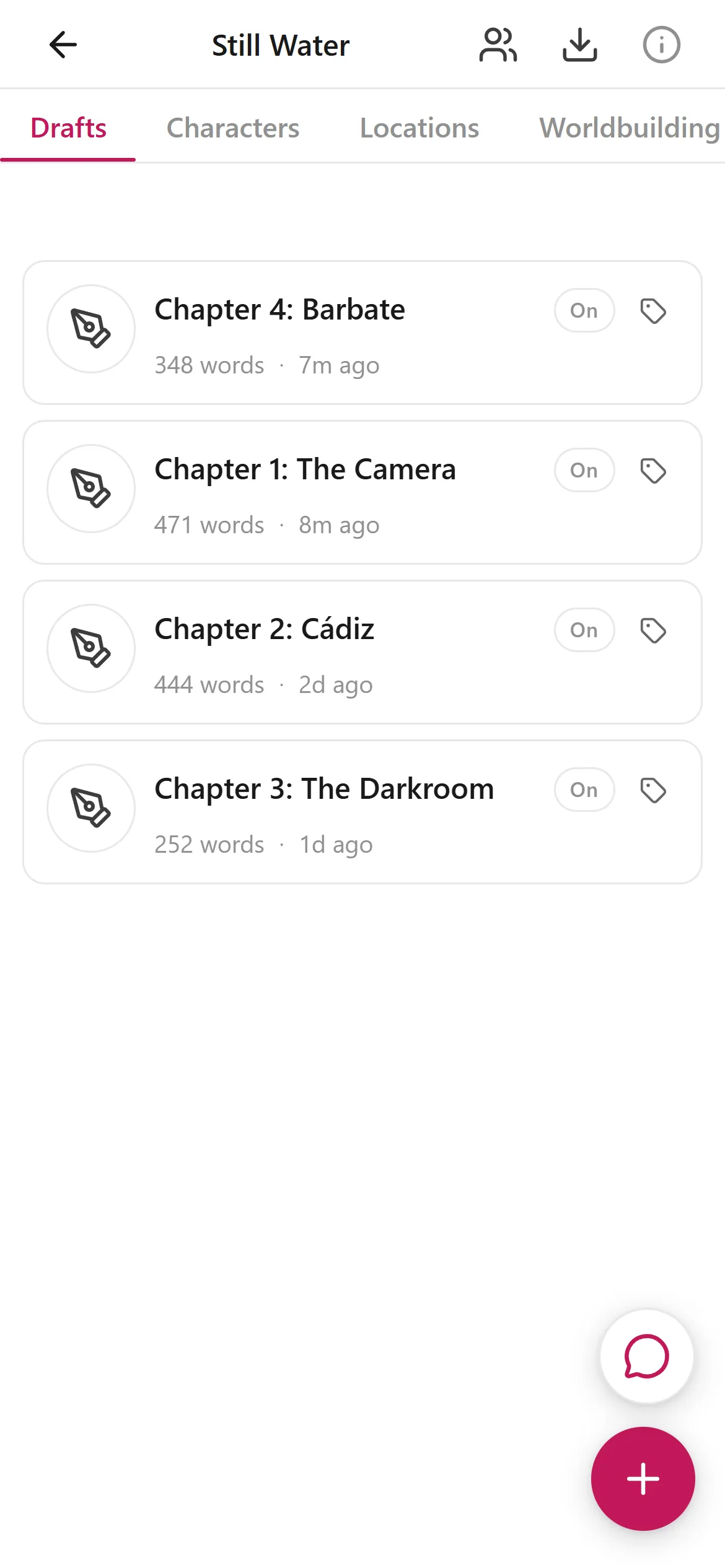
Every node carries an On/Off toggle that controls whether the AI sees it
AI Context Toggles
Every character, location, and worldbuilding entry has a small toggle pill on its card that controls whether the AI sees it when writing. There are three states:
- Auto (default) — the AI automatically decides whether this entry is relevant to the current scene. This is the recommended setting for most entries.
- On — always included in AI context. Use this for your main character or a location that appears in every scene.
- Off — excluded from AI context entirely. Use this for entries you want to keep in your bible but don't want the AI to reference — for example, a character who hasn't been introduced yet or a spoiler you're saving for later.
Tap the toggle pill directly on the card to cycle through the states: Auto → On → Off → Auto. You don't need to open the entry to change it.
Editing Characters
Tap a character card to open the full character editor. On mobile, you can edit every aspect of your character:
- Identity — name, role, age, archetype, species, and pronouns
- Portrait — view the character portrait (generated on desktop)
- Summary — a brief overview of who this character is
- Personality — traits, strengths, flaws, and motivations as editable pills. Tap + to add, tap × to remove.
- Biography & Backstory — free-form text areas for character history
- Voice & Speech Patterns — how this character speaks, which the AI uses for dialogue
All changes auto-save as you type — you'll see a “Saving...” indicator in the header that changes to “Saved” when complete.
Editing Locations
Tap a location card to open the full editor with these fields:
- Name — the location's name
- Type — a dropdown with options like City, Town, Building, Room, Wilderness, Landmark, Region, Country, World, and more
- Description — what this place looks like
- Details — specific details about the location
- Atmosphere — the mood and feeling of this place
- Significance — why this location matters to the story
- Notes — private notes and reminders
Editing Worldbuilding
Worldbuilding entries (labeled as “Lore” internally) have these fields:
- Name — the entry title
- Description — a brief summary of this world element
- Content — the main body, where you define rules, history, magic systems, cultures, and other world details
- Notes — private notes and reminders
The AI treats worldbuilding entries as authoritative rules. If you define that “magic requires a blood sacrifice,” the AI will respect that constraint in every scene it writes.
Node Info Sheets
Each detail view (Character, Location, Worldbuilding) has an info button in the top right corner of the header. Tap it to see:
- What this type of node is for
- How the AI uses the information you provide
- Tips for getting the best results
These info sheets are a quick reference — especially useful when you're first building out your Story Bible and want to know what the AI pays attention to.
How the AI Uses Your Story Bible
Whenever the AI generates prose, Genesis Writer automatically:
- Looks at your Story Bible entries and their AI context toggle states
- Includes all entries set to On
- Excludes all entries set to Off
- For entries set to Auto, analyzes your current draft content and includes the ones most relevant to the scene
- Builds a context package with this information and sends it to the AI model along with your draft and writing style
This is identical to how context building works on desktop. The mobile toggle controls give you the same level of control over AI context — just in a more touch-friendly format.