Co-work on Mobile
Join or host real-time co-work sessions from your phone with the mobile-optimized collaboration view.
Last updated April 2026
Overview
Co-work sessions are fully supported on mobile. Whether you're hosting a session from your phone or joining one via a shared link, you get a purpose-built mobile interface for real-time collaborative editing — the same Liveblocks-powered sync as desktop, adapted for touch screens.
Like the desktop version, co-work on mobile is completely token-free. No AI generation is used during collaboration, so you can write together as much as you want.
Starting from Mobile
To start a co-work session from your phone:
- Open a project in the mobile writer.
- Tap the co-work button (people icon) in the header bar, next to the export button.
- You'll enter the co-work view with your first draft automatically loaded and a session started.
- Tap the share button to send your invite link via messages, email, or any other app on your phone.
Your partner opens the link, signs in to Genesis Writer, and joins your session instantly.
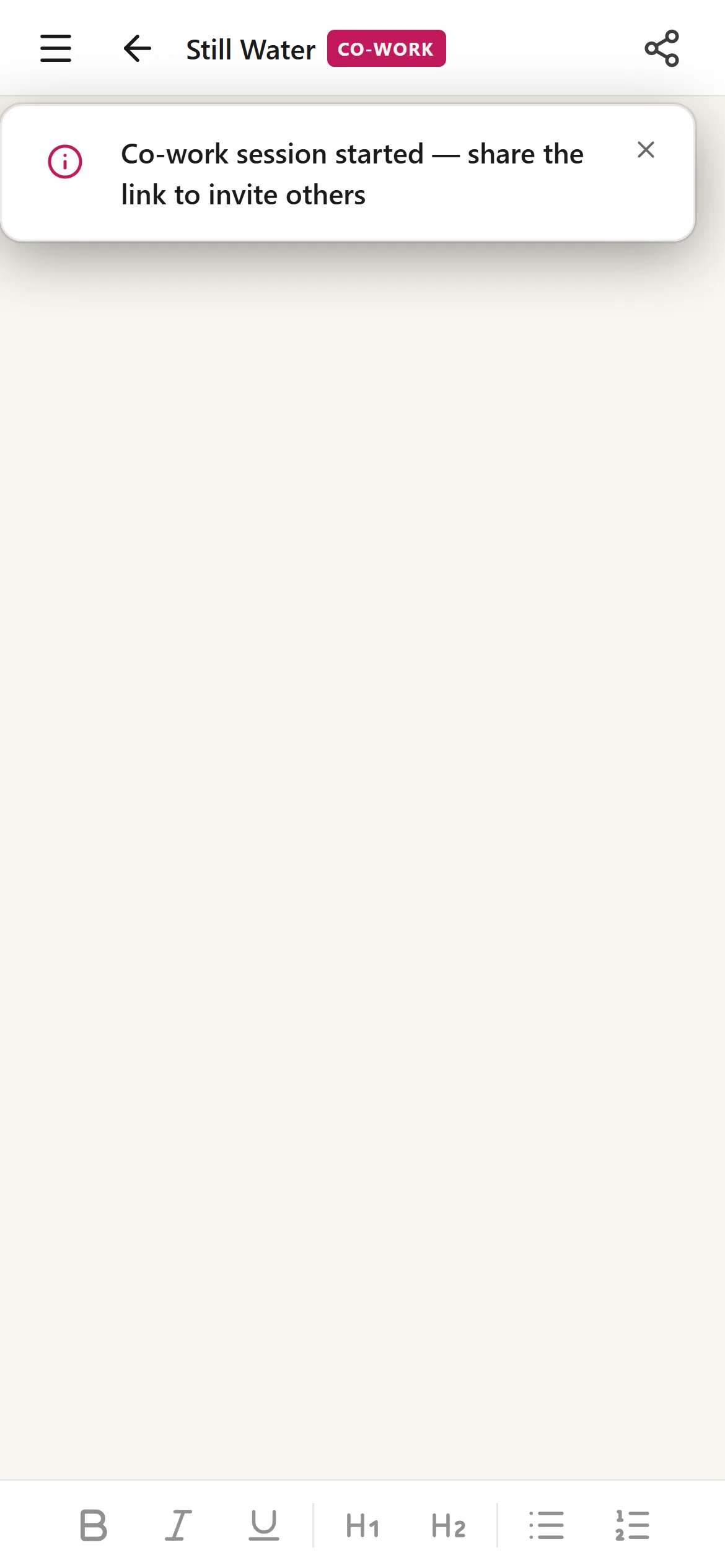
Real-time co-work on mobile — shared editing with presence, no tokens used
The Mobile Co-work Layout
The mobile co-work view is a streamlined, full-screen editing experience:
- Header bar — shows a drafts button, back arrow, your project title (truncated to fit), a “CO-WORK” badge, the share button (host only), and presence avatars showing who's connected.
- Editor — a clean, serif-font writing area. When a draft is empty, you'll see a “Start writing...” placeholder to guide you in.
- Bottom toolbar — a fixed bar with formatting buttons for Bold, Italic, Underline, Heading 1, Heading 2, Bullet List, and Ordered List.
Everything you type syncs in real time. You'll see your partner's cursor and selections as colored highlights with their name label.
Switching Drafts
Tap the list icon (top-left corner) to open the draft sheet — a bottom panel that slides up showing all drafts in your project.
- The active draft is highlighted with your accent color and shows a filled icon.
- Each draft displays its word count on the right side, so you can tell drafts apart even if they share the same name.
- Tap + New Draft to create a new draft directly from the sheet. New drafts are automatically numbered (Draft 1, Draft 2, etc.).
When the host switches drafts, guests are automatically moved to the same draft and see a notification telling them which draft the host switched to.
Sharing the Link
The host sees a share button (link icon) in the header. Tapping it:
- On phones that support it, opens the native share sheet — so you can send the link via Messages, WhatsApp, Email, or any other app.
- On browsers without native share support, the link is copied to your clipboard and the button briefly shows a checkmark to confirm.
Seeing Who's Connected
Presence avatars appear in the top-right corner of the header — colored circles with initials for each connected participant (up to 3 visible, with a +N overflow count for larger sessions).
Tap the avatars to open the presence panel, a bottom sheet showing the full list of connected participants with their names, avatars, and connection status.
Joining as a Guest
When you open a co-work link on your phone:
- Sign in if you aren't already (any Genesis Writer account works).
- The session loads automatically with the host's active draft.
- You can edit freely — your changes sync in real time via the same Liveblocks infrastructure as desktop.
- If the host switches drafts, you're moved automatically and see a notification.
- If the host ends the session, you're notified and returned to your own projects.
As a guest, you can view the draft list (read-only) but can't switch drafts yourself — the host controls which draft everyone is working on.
What's Different from Desktop
The mobile co-work experience has the same real-time sync and collaboration features as desktop, with a few layout differences:
- Draft sidebar becomes a bottom sheet — instead of a permanent left panel, drafts open in a slide-up sheet that you dismiss when done.
- Presence panel becomes a bottom sheet — instead of a right-rail panel, participant info opens in a slide-up sheet.
- Formatting toolbar is at the bottom — fixed above the keyboard area for easy thumb access. Desktop's toolbar sits above the editor.
- Native share — the mobile share button uses your phone's built-in share sheet, making it easy to send the invite via any app.
The editing experience, cursor visibility, and sync reliability are identical — you can have one participant on desktop and the other on mobile without any issues.