Storage & Quotas
Storage limits per plan and how to manage usage.
Last updated October 2026
Storage Limits by Plan
Every Genesis Writer plan includes a storage allocation for images and other files you upload or generate. The amount scales with your subscription tier:
| Plan | Storage Limit |
|---|---|
| Free Free | 1 GB |
| Writer Writer+ | 25 GB |
| Basic Basic+ | 10 GB |
| Professional Pro | 125 GB |
The Free plan's 1 GB comfortably covers a typical project — text, portraits, draft images, and reference files. If you work across many image-heavy projects, the paid tiers raise the ceiling; even the Writer tier's 25 GB provides room for thousands of images.
What Counts Toward Storage
Your storage quota covers all binary files (primarily images) associated with your account. Here's exactly what gets counted:
- Uploaded images — any image you manually upload to your drafts, character profiles, or project assets.
- AI-generated portraits — character portraits created through the portrait generator. Each portrait is stored as a WebP file. See Character Portraits.
- Draft images — images embedded in your drafts, whether uploaded or AI-generated via the draft image feature.
- Style card illustrations — the artwork generated or uploaded for custom writing styles. See Creating Custom Styles.
- Beta reader portraits — AI-generated portraits for custom beta reader personas.
Checking Your Storage Usage
The Settings page displays your current storage usage with a visual progress bar. You'll see:
- The total bytes used vs. your plan's limit.
- A percentage indicator showing how full your storage is.
- A visual bar that fills from left to right as you approach your limit.

Track your storage usage from the Settings page — the bar shows percentage used at a glance
The storage display updates whenever you upload, generate, or delete images. You don't need to refresh the page — changes appear in real time.
When Storage Is Full
When you reach your plan's storage limit, any action that would create a new file is blocked with an error message. This includes:
- Uploading images to drafts.
- Uploading or generating character portraits.
- Creating style card illustrations.
- Generating beta reader portraits.
You can still write, edit text, generate AI prose, and do everything else that doesn't create new image files. The storage limit only affects file uploads and image generation.
Managing Your Storage
Deleting Images & Portraits
To free up storage space, you can delete images you no longer need:
- Draft images — remove images from your drafts by selecting the image in the editor and deleting it. The underlying file is removed from storage.
- Character portraits — navigate to the character's profile and remove or replace the portrait. The old image file is deleted.
- Style illustrations — regenerate a style's illustration to replace it. The old illustration is automatically cleaned up.
When you delete or replace an image, the storage quota updates immediately. You'll see the freed space reflected on your Settings page.
How Storage Is Tracked
Genesis Writer tracks your total storage usage — the combined size of all files in your account. This is the number compared against your plan's limit. Since images (portraits, draft illustrations, uploaded references) make up the vast majority of stored files, storage usage is largely driven by image content.
Your storage total is updated atomically whenever files are created or deleted. There's no delay between uploading an image and seeing the storage change.
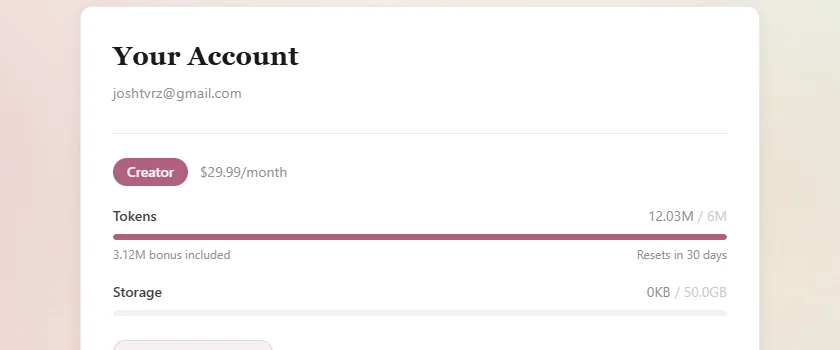
Your token balance and storage usage are always visible from Account Settings
Tips for Efficient Storage Use
A few strategies to make the most of your storage allocation:
- Be selective with portraits. You don't need a portrait for every minor character. Focus portrait generation on your main cast and save storage for the characters that matter most.
- Clean up portrait previews. If you generate multiple portrait variations before choosing one, the unused previews are automatically cleaned up. No action needed on your part.
- Use WebP images when uploading. If you're manually uploading reference images, convert them to WebP format first. WebP files are typically 50–70% smaller than JPEG or PNG at similar quality.
- Remove images from old drafts. If you have archived drafts with embedded images you no longer reference, removing those images frees up meaningful space.
- Monitor your usage regularly. A quick glance at the Settings page once a week helps you catch any unexpected growth before you hit the limit.