Managing Your Subscription
Upgrade, downgrade, cancel, and view payment history.
Last updated October 2026
The Settings Page
Everything related to your account, subscription, and usage lives on the Settings page. You can access it by clicking the gear icon in the top-right corner of the app header, or by navigating directly to /app/settings.
The Settings page shows you a snapshot of your account at a glance:
- Current plan — which tier you're on and when it renews.
- Token balance — your remaining Genesis Tokens, with a visual progress bar.
- Token reset date — when your monthly tokens refresh (paid plans only).
- Storage usage — how much of your plan's storage you've used.
- Lifetime stats — total words generated, sessions, and usage over time.
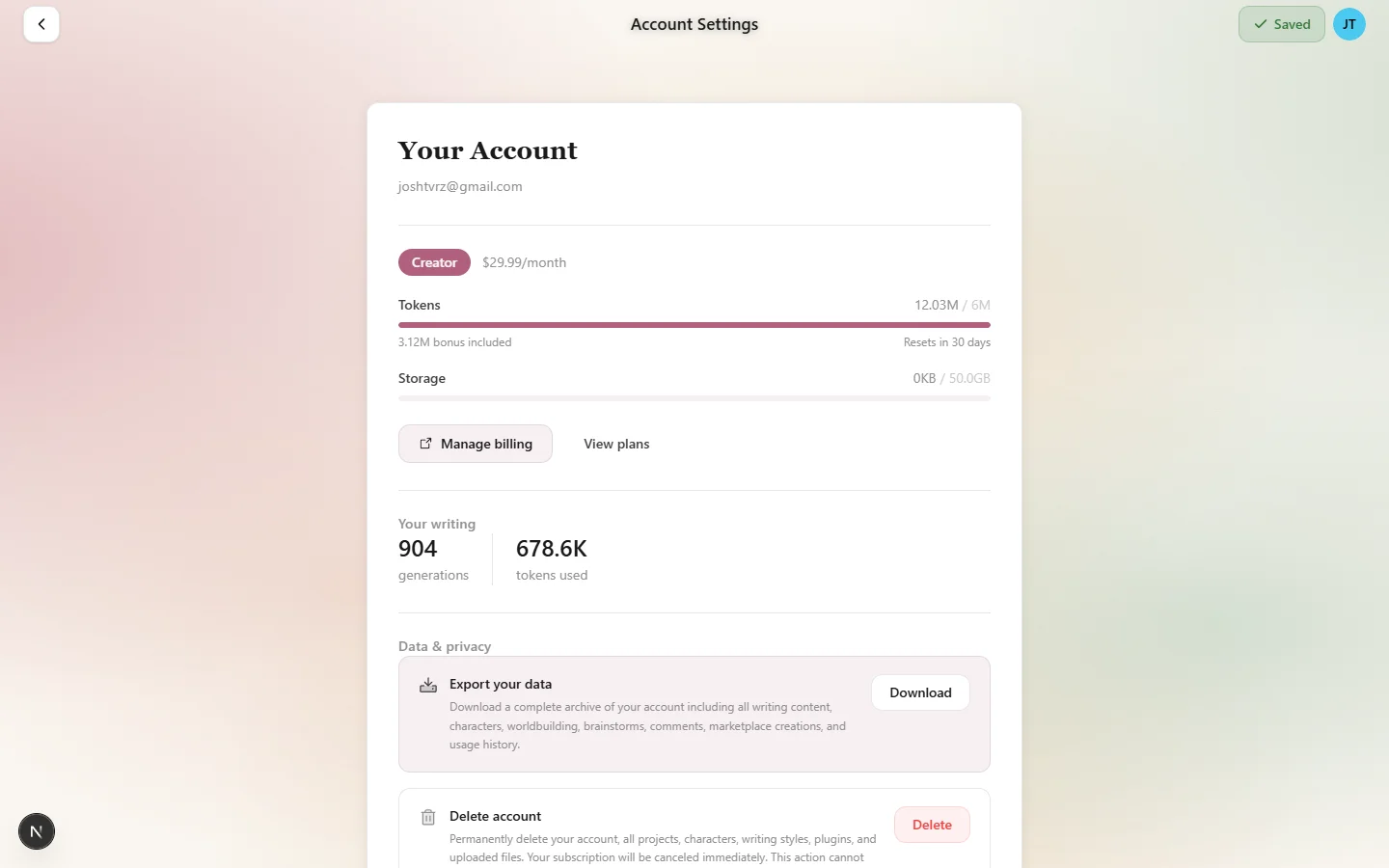
Your Settings page — the command center for account and billing management
Upgrading Your Plan
Upgrading moves you to a higher tier with more tokens and storage. Here's how:
- Navigate to Settings from the app header.
- Click the Manage Subscription button. This opens the Stripe customer portal.
- In the Stripe portal, select the new plan you want.
- Confirm the change. Stripe handles the prorated billing automatically.
Upgrades take effect immediately. Your new token allocation is applied right away, and you gain access to the higher storage limit. Stripe calculates the prorated difference — you only pay the difference for the remaining days in your current billing cycle.
Downgrading Your Plan
Downgrading moves you to a lower tier. The process is the same as upgrading:
- Go to Settings and click Manage Subscription.
- Select the lower plan in the Stripe portal.
- Confirm the change.
Unlike upgrades, downgrades take effect at the end of your current billing cycle. You keep your current plan's tokens and storage for the rest of the period you've already paid for. When the new cycle starts, your allocation adjusts to the lower tier.
Cancelling Your Subscription
If you need to cancel, the process is straightforward:
- Go to Settings and click Manage Subscription.
- In the Stripe portal, click Cancel plan.
- Stripe will ask you to confirm. Once confirmed, your cancellation is scheduled.
Cancellation is not immediate. You keep full access to your paid plan until the end of your current billing period. If you cancel on day 10 of a 30-day cycle, you still have 20 days of full access remaining.
What Happens After Cancellation
When your billing period ends after cancellation:
- Your plan reverts to Free. You'll have the same access as any Free account.
- Token balance resets. Your monthly tokens stop refreshing. Any remaining tokens from your paid plan are gone.
- You keep Claude Haiku 5.5 and GPT-6 Luna. The Free plan runs on Claude Haiku 5.5, our everyday writing model, and also includes GPT-6 Luna. The rest of the 20+ AI models, including Gemini, Grok and the other Claude models, unlock again when you re-subscribe. If a model you picked is no longer included, Genesis Writer switches you back to Claude Haiku 5.5 automatically.
- Project limit applies. If you have more than 3 projects, you can still access all of them, but you can't create new ones until you're at or below the limit.
- Subscriber-only features lock. Your AI images drop to the Free plan's one a month, for a character portrait; scene images, style illustrations and beta reader portraits, beta reader sessions, marketplace publishing, and copying published beta readers become unavailable. You can still create and use characters, styles, and plugins within your Free-plan token budget.
- Your data is safe. Nothing is deleted. Your projects, characters, styles, and files all stay exactly where they are. You can re-subscribe at any time to restore full access.
Payment History & Invoices
All payment history and invoices are managed through Stripe's customer portal:
- Go to Settings and click Manage Subscription.
- In the Stripe portal, navigate to the Billing history section.
- View and download PDF invoices for any past payment.
Stripe sends email receipts automatically after each successful payment. If you need to update your payment method (credit card, bank account), you can do that in the Stripe portal as well.
Checking Your Token Balance
You can check your token balance in two places:
- Settings page — shows your current balance as a number and a visual progress bar, along with the exact date your tokens reset.
- Model menu — in the writer header, the model menu shows how much each model costs to run, from $ to $$$$$, so you can weigh cost before you generate.
Your balance updates in real time. After each generation, the actual cost is deducted and your balance reflects the change immediately. If you discard a generation, the reserved tokens are refunded back to your balance.
Understanding Your Billing Cycle
Paid plans renew every 30 days from the date you first subscribed. Your token allocation refreshes to the full amount at the start of each new cycle — unused tokens from the previous cycle do not roll over.
The Settings page shows your exact reset date, so you always know when your fresh allocation arrives. If you're running low on tokens near the end of a cycle, switching to a lower-cost model (fewer $ signs in the model menu) can help you stretch the remaining balance until your reset.