Publishing Your Creations
Share your styles, plugins, and beta readers with other writers.
Last updated October 2026
Who Can Publish
Publishing to the Genesis Writer Marketplace requires a paid subscription. Anyone on the Basic, Writer, or Professional plan can publish their creations for other writers to find and use.
Free plan users can browse and add marketplace items and create private styles and plugins, but they cannot publish. Upgrading to any paid plan unlocks publishing.
What You Can Publish
Three types of creations can be published to the Marketplace:
| Item Type | What It Is | Learn More |
|---|---|---|
| Writing Styles | Custom writing styles with multi-stage prompt pipelines that shape AI-generated prose. | Creating Custom Styles |
| Plugins | Custom AI tools that extend the writing toolkit with new text transformations. | Creating Custom Plugins |
| Beta Readers | AI beta reader personas with specific focus areas and feedback styles. | Creating Custom Beta Readers |
The Publishing Flow
Publishing follows the same pattern for all three item types. You create the item first, then set its visibility to make it available to other writers.
Step 1: Create Your Item
Use the creation wizard for whichever item type you want to publish. Each type has its own wizard:
- Styles — the 5-step wizard (Intent, Basics, Prompts, Illustration, Publish). See Creating Custom Styles.
- Plugins — the 4-step wizard (Intent, Details, Prompts, Publish). See Creating Custom Plugins.
- Beta Readers — the creation flow with persona definition, focus areas, and portrait. See Creating Custom Beta Readers.
Fill in all required fields and take time to craft a compelling name, description, and tagline. These are the first things other writers see when browsing, and they decide whether someone adds your item.
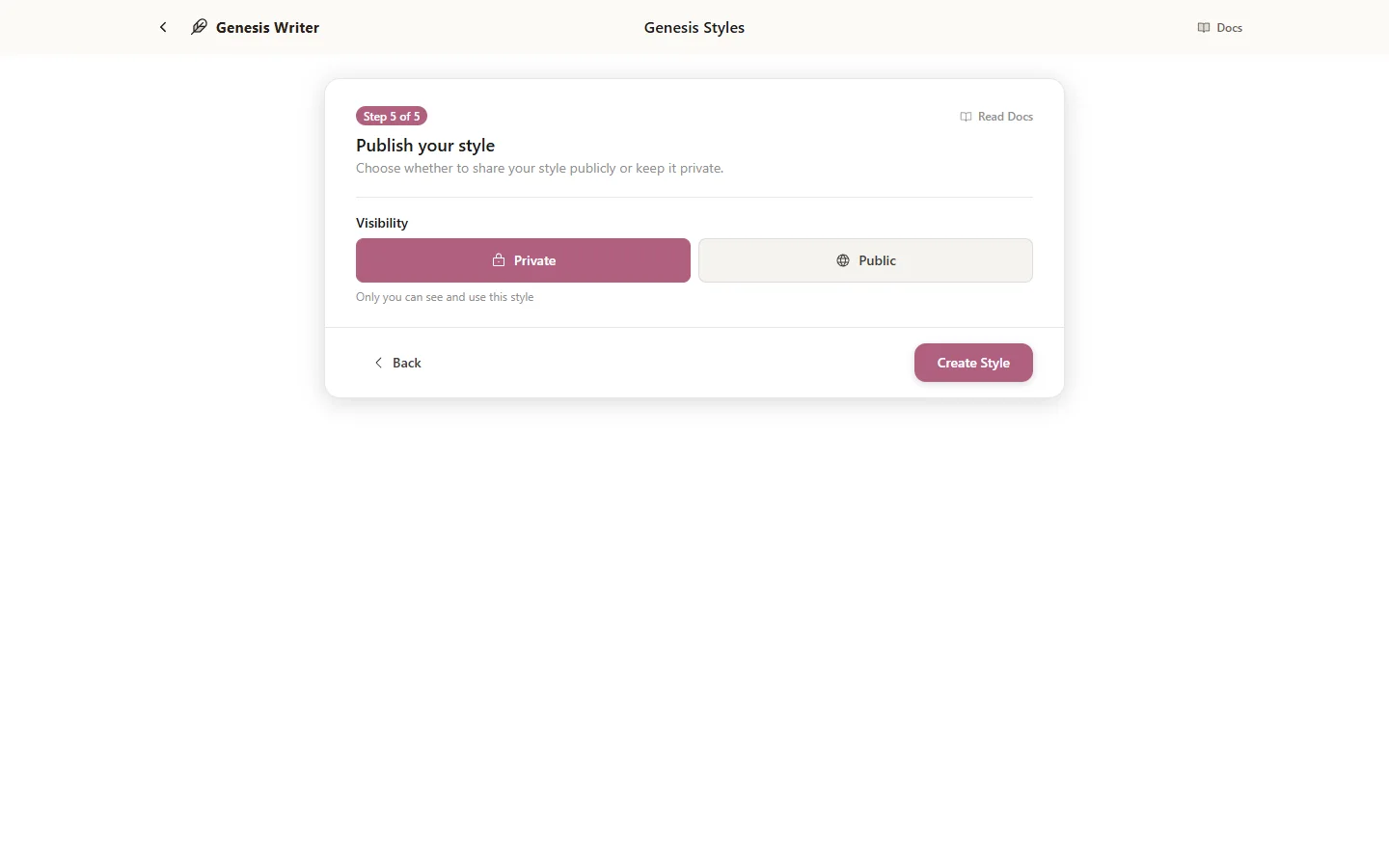
The final step in every creation wizard lets you set visibility
Step 2: Set Visibility
The final step in every creation wizard includes a visibility setting. This controls who can see and use your item:
| Visibility | Who Can See It | Best For |
|---|---|---|
| Private | Only you | Work in progress, personal tools, items not ready for the public |
| Public | Everyone on the Marketplace | Sharing your finished work with other writers |
For styles, there's an additional prompt visibility toggle once you choose Public. Setting prompts to Visible lets other writers read your pipeline prompts and learn from them. Setting them to Hidden means they can use your style but can't see how it works under the hood.
Step 3: Submit to Marketplace
Click Create (or Save if editing an existing item) to finish. If visibility is set to Public, your item appears on the Marketplace immediately, at the top of the Newest tab.
Items in the Featured tab are picked by the Genesis Writer team. There's nothing to apply for: the team looks through public items and features ones that stand out.
Marketplace Guidelines
To maintain a high-quality marketplace experience for everyone, published items must follow these guidelines:
- Original work. Everything you publish should be your own creation. Don't republish other users' items or copyrighted material.
- Accurate descriptions. Your item's name, tagline, and description should honestly represent what it does. Don't use misleading titles.
- Quality effort. Items should be functional and useful. Placeholder content, empty prompts, or broken configurations will be removed.
- Appropriate content. Items must comply with Genesis Writer's Acceptable Use Policy. Items that promote hate, harassment, or illegal activity will be removed.
- No spam. Don't publish large numbers of nearly-identical items to flood the marketplace. Quality over quantity.
Managing Published Items
After publishing, you retain full control over your items. You can:
- Edit — update the name, description, prompts, or any other field. Find the item in the Yours tab, open it, and click Edit. Adding an item doesn't copy it, so your changes reach everyone who has added it.
- Unpublish — switch visibility back to Private to take the item off the Marketplace. Other writers can no longer find or use it, including those who had already added it.
- Delete — permanently remove the item from your account and the Marketplace. This action cannot be undone.
Likes & Counts
Other writers can like your item with the heart, which saves it to their own Liked tab. The Marketplace doesn't show like counts or use counts to anyone, creators included, and there are no ratings or reviews.
Tips for Useful Items
The items writers get the most out of tend to share a few traits:
- Solve a real problem. The best styles, plugins, and beta readers address a specific writing challenge. “A style for writing tense courtroom scenes” is more compelling than “a general writing style.”
- Write a great description. Your description is your pitch. Explain what the item does, who it's for, and what makes it different from the defaults. Be specific about the results users can expect.
- Choose an evocative name. “Midnight Ink” tells you more than “My Dark Style.” The name should hint at the experience.
- Add a portrait or illustration. Artwork makes an item easier to recognize at a glance than a default placeholder. For styles, add a card illustration. For beta readers, create a portrait.
- Test thoroughly. Run your style with multiple models, try your plugin on different text types, and test your beta reader on various genres. Make sure it works well across a range of inputs before publishing.
- Share your prompts. For styles, setting prompt visibility to Visible lets writers see exactly how a style works before they add it, learn from your pipeline design, and make a copy they can edit. The same goes for plugins and beta readers.