Mind-Map Brainstorming
Visual brainstorming with nodes, branches, and cross-links.
Last updated March 2026
Overview
Mind-map brainstorming gives you a visual canvas for generating and organizing ideas. Instead of working through a linear list, you start with a central topic and branch outward — connecting ideas, discovering patterns, and letting one thought lead to the next.
When you open a Brainstorm node, you'll see the kickstart screen with category tiles — Dialogue, Characters, Worldbuilding, Plot Twists, and more. Pick a category to have the AI generate a burst of ideas, which appear as draggable nodes on an interactive canvas. From there you can rearrange nodes, draw cross-links between distant ideas, and keep generating until the map takes shape.
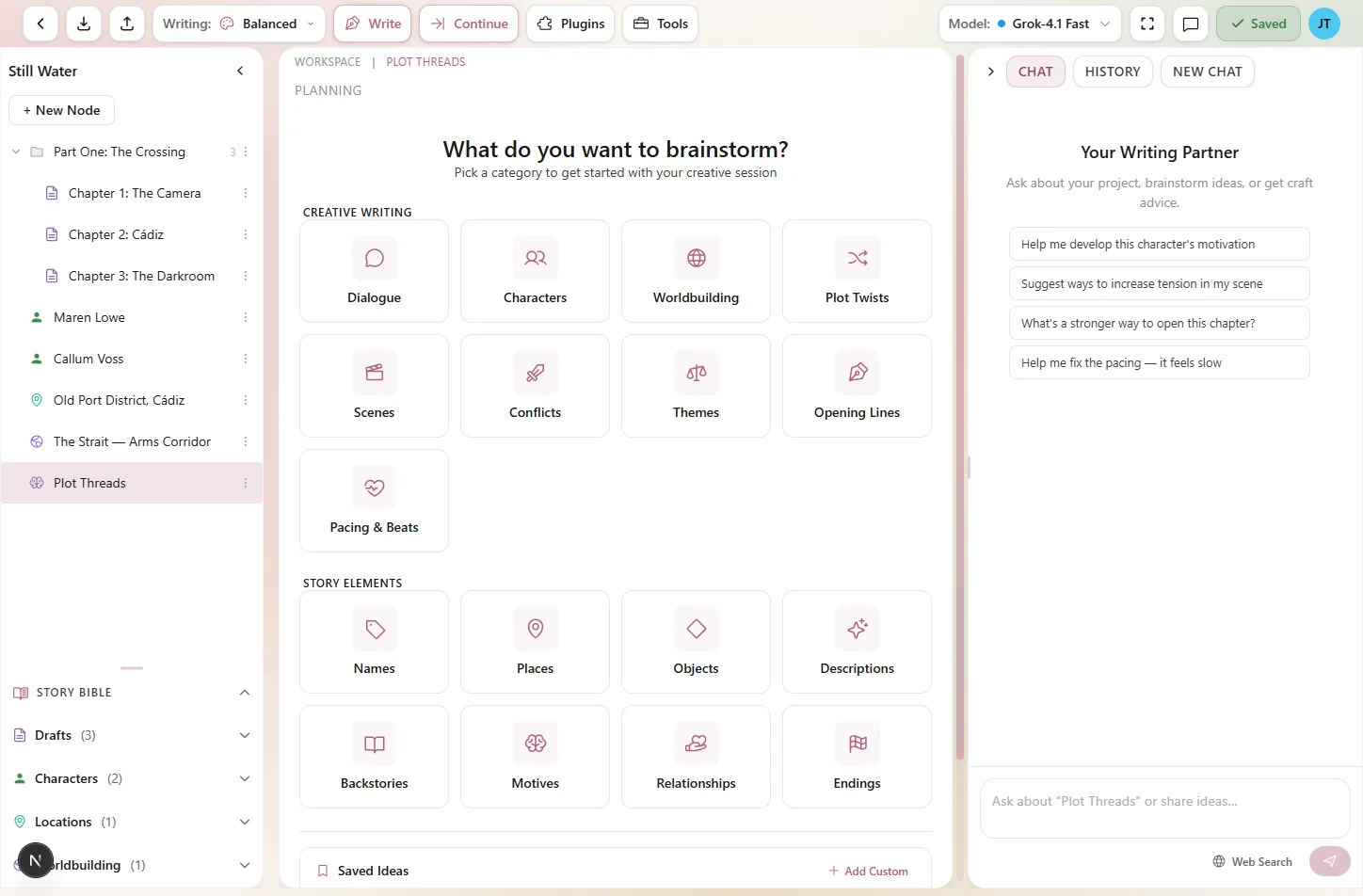
The brainstorm kickstart screen — pick a category to begin generating ideas
Creating a Brainstorm Node
To start brainstorming, create a Brainstorm node from the left panel:
- Click the + button at the top of the node tree.
- Select Brainstorm from the node type menu.
- Give it a name (e.g., “Act 2 Plot Ideas” or “Magic System Rules”).
- Click the new node to open the mind-map canvas in the center panel.
You can create as many Brainstorm nodes as you need. Some writers keep one per act, others create separate brainstorms for characters, worldbuilding, and plot. Organize them however makes sense for your project.
The Mind-Map Canvas
When you select a Brainstorm node, the center panel transforms into an interactive mind-map canvas. This is where all the visual brainstorming happens.
The Central Topic
Every mind-map starts with a central topic node at the center of the canvas. This is your brainstorm's core question or theme — the seed that everything branches from.
Type your central topic directly into the center node. Make it specific enough to focus the brainstorm, but open enough to allow exploration. “What drives the villain?” is better than “villain ideas” because it gives the AI a clear direction while leaving room for surprising answers.
Branches & Hierarchy
Ideas radiate outward from the central topic as branches. Each branch is a root-level node connected directly to the center. From there, branches can have their own children, creating a tree-like hierarchy:
- Root nodes — direct children of the central topic. These are your main idea categories.
- Child nodes — nested under root nodes. These drill deeper into a specific idea.
- Deep children — you can nest as many levels as you need, though two or three levels deep is usually enough.
The hierarchy is flexible. Drag a node onto another to make it a child, or drag it back to the canvas background to promote it to a root-level branch.
Cross-Links
Sometimes ideas from different branches connect. Cross-links are edges you draw between any two nodes, regardless of where they sit in the hierarchy. They're perfect for showing relationships that the tree structure alone can't express.
To create a cross-link, enter link mode on a node, then click the target node. The connection appears as a dashed edge with an optional label describing the relationship. Cross-links don't change the hierarchy — they're purely visual and conceptual connections.
Branch Colors
Each root-level branch is automatically assigned a color from a palette of eight: coral, amber, lime, sky, lavender, rose, mint, and peach. Child nodes inherit their parent branch's color, making it easy to see which ideas belong together at a glance.
Colors are assigned automatically as you add branches, cycling through the palette. If you have more than eight root branches, colors will repeat.
Adding Nodes
There are two ways to add nodes to your mind-map:
- Manually — click the add button on any existing node to create a child. Type your idea directly into the new node. Manual nodes are marked with a subtle indicator so you can distinguish them from AI-generated ones.
- AI generation — let the AI generate branches for you. Select a node, choose a brainstorm category, and the AI will create child nodes with relevant ideas. See AI Idea Generation for the full details.
Both methods work together. A common workflow is to let the AI generate a first wave of ideas, then manually add your own, then drill deeper into the most promising branches with another round of AI generation.
Layout Modes
The mind-map supports three layout modes:
| Mode | How It Works |
|---|---|
| Radial | Branches radiate outward from the center in a circular pattern. This is the default and works well for most brainstorms. |
| Force | A physics-based simulation where nodes repel each other and edges act like springs. Nodes settle into a natural arrangement based on their connections. |
| Manual | No automatic positioning. You place every node exactly where you want it. Best when you have a specific spatial arrangement in mind. |
When auto-layout is enabled (the default), the canvas automatically arranges nodes whenever you add or remove them. Toggle auto-layout off to prevent the canvas from rearranging while you're manually positioning nodes.
You can also lock individual nodes in place. A locked node stays where you put it even when auto-layout repositions everything else around it.
Collapsing & Expanding Branches
As your mind-map grows, it can get visually busy. Click any node to collapse its children, hiding the entire sub-branch. A small indicator shows how many hidden children exist. Click again to expand.
This is especially useful when you have several deep branches and want to focus on just one area of the map. Collapse the branches you're not actively working on, expand the one you are.
Brainstorm Categories
Genesis Writer offers 18 brainstorm categories organized into two groups. Each category focuses the AI on a specific type of creative thinking:
Creative Writing
| Category | What It Generates |
|---|---|
| Dialogue | Character conversations, memorable quotes, banter with subtext |
| Characters | Personalities, archetypes, characters with contradictions |
| Worldbuilding | Settings, cultures, history, sensory world details |
| Plot Twists | Surprises and revelations that recontextualize what came before |
| Scenes | Key moments, set pieces, dramatic turning points |
| Conflicts | Obstacles, antagonist dynamics, internal struggles |
| Themes | Central tensions, moral questions, thematic contradictions |
| Opening Lines | First sentences, chapter openers, hook lines |
| Pacing & Beats | Scene rhythm, tension arcs, tempo shifts |
Story Elements
| Category | What It Generates |
|---|---|
| Names | Character names, place names, titles with tonal associations |
| Places | Settings and landmarks with atmosphere and personality |
| Objects | Props, artifacts, and symbolic objects with narrative potential |
| Descriptions | Vivid imagery, sensory details, metaphors |
| Backstories | History, origin stories, formative events |
| Motives | Goals, desires, emotional needs rooted in character wounds |
| Relationships | Character bonds, rivalries, dynamics with built-in tension |
| Endings | Final scenes, closing lines, emotionally resonant resolution |
Each category also includes a craft tip — a short piece of writing advice that appears when you select it. These tips help you think more critically about the ideas the AI generates and push you toward stronger storytelling.
Node Details
Every node on the mind-map carries more than just a title. Select a node to see its details:
- Text — the idea itself, displayed as the node's label on the canvas.
- Score — AI-generated relevance score indicating how closely the idea connects to your central topic and project context.
- Generation depth — how many levels of AI generation deep this idea is. Depth 0 means it was part of the first generation, depth 1 means it was generated by drilling into a depth-0 idea, and so on.
- Tags — optional labels for categorizing and filtering nodes.
- Timestamps — when the node was created and when its children were last generated.
Tips for Visual Brainstorming
- Start with a specific question. “What are the consequences of the betrayal in Chapter 7?” gives better results than “Chapter 7 ideas.” The more focused your central topic, the more useful the branches.
- Use cross-links to find unexpected connections. When you notice two ideas from different branches that relate to each other, draw a cross-link. These connections often lead to the most interesting story developments.
- Don't over-organize. Brainstorming is messy by nature. Let ideas accumulate, then organize later. You can always restructure the map after the creative energy settles.
- Alternate between AI and manual. Let the AI generate a burst of ideas, then add your own responses and reactions. The best brainstorms are a conversation between you and the AI.
- Collapse branches you're done with. Keep the canvas focused on the area you're actively exploring.
- Create multiple brainstorms. One per major story problem keeps things focused. You can always link ideas across brainstorms later.