Exporting Your Work
Export to DOCX, PDF, or EPUB formats.
Last updated March 2026
Overview
When your draft is ready — whether that means “ready to share with a beta reader” or “ready to submit to an agent” — Genesis Writer can export it in several standard formats. You can export a single draft node or combine all your draft nodes into a full manuscript.
Exports are generated entirely in your browser. Your content never passes through a third-party conversion service. The file downloads directly to your computer as soon as it's ready.
Export Formats
Genesis Writer supports three export formats:
- DOCX — Microsoft Word format. The best choice for submissions, editing with collaborators, and professional workflows. Preserves text formatting.
- PDF — Portable Document Format. Ideal for sharing a read-only version, printing, or archiving. Preserves visual layout and images.
- EPUB — Electronic publication format. The standard for e-readers like Kindle, Kobo, and Apple Books. Generates a proper EPUB3 file with chapter navigation.
How to Export a Draft
- Open the draft you want to export in the draft editor.
- Click the Export button in the toolbar, or open the draft node's context menu and select Export.
- Choose your export format: DOCX, PDF, or EPUB.
- The file is generated in your browser and automatically downloads. The filename is based on your draft node's title.
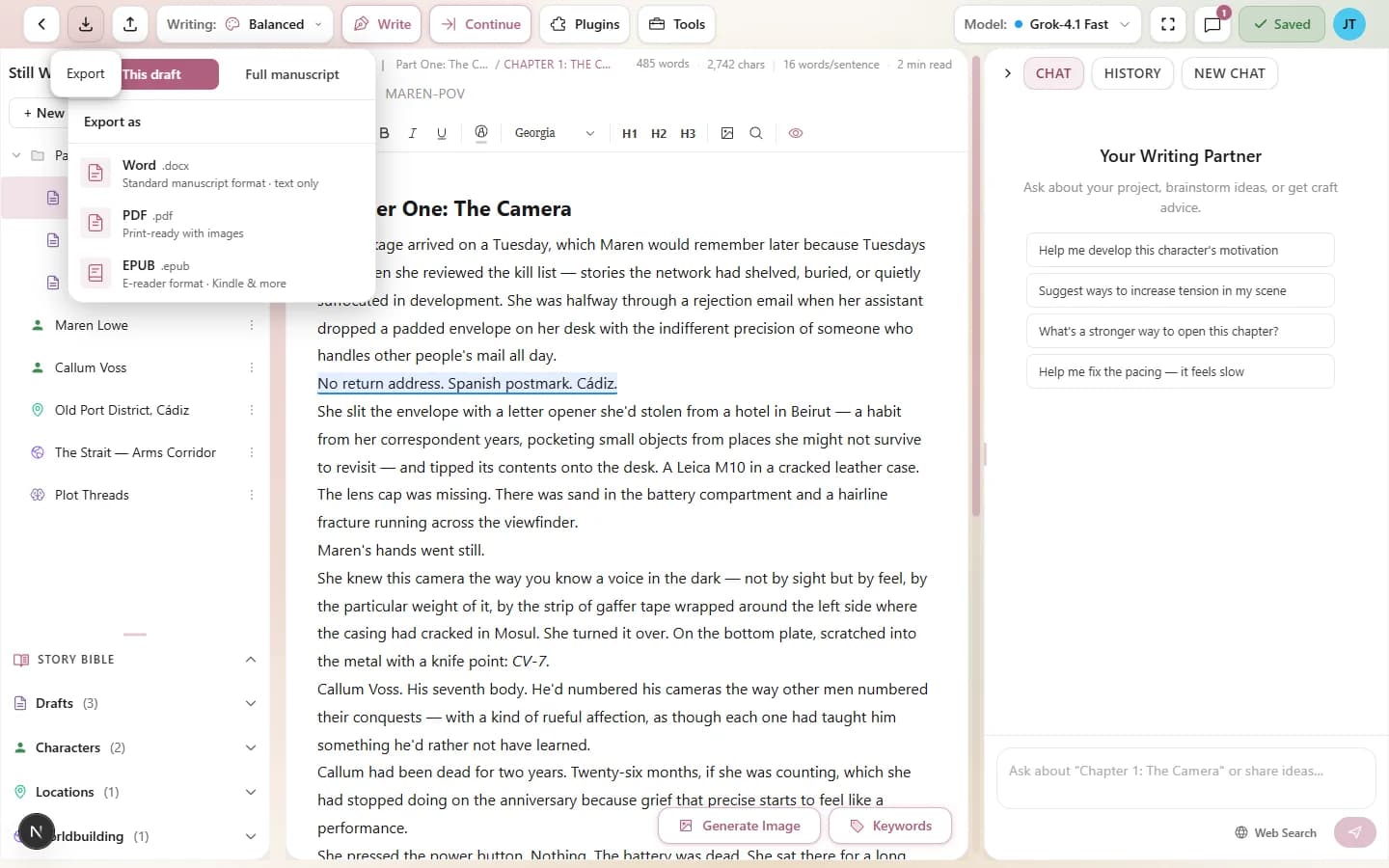
Choose your export format and download instantly
DOCX Export
DOCX export creates a properly formatted Word document using the Open XML standard. This is the format most literary agents, publishers, and editors expect for manuscript submissions. Here's what's preserved:
- Bold, italic, underline, and strikethrough text formatting.
- Headings (H1, H2, H3) as Word heading styles.
- Text alignment (left, center, right, justified).
- Font family and size from inline styles.
- Text color from inline styles.
- Paragraph spacing with appropriate leading.
The export uses Georgia as the default font at 12pt — a standard manuscript formatting choice. Margins are set to 1 inch on all sides. If your text has custom fonts or sizes applied in the editor, those override the defaults.
PDF Export
PDF export generates a print-ready document using a PDF rendering engine. The output is a letter-size PDF with clean typography. Here's what's included:
- All text formatting (bold, italic, underline, strikethrough).
- Headings with proportional sizing (H1 at 24pt, H2 at 18pt, H3 at 14pt).
- Images embedded in the document with proper sizing.
- Blockquotes with left border and italic styling.
- Image alignment — left-aligned and right-aligned images are converted to side-by-side layouts for PDF compatibility.
- Automatic page breaks that avoid splitting headings and blockquotes.
The PDF uses Georgia as the body font with 1.6 line height, which produces comfortable, readable output. Margins are 0.75 inches top and bottom, 1 inch left and right.
EPUB Export
EPUB export generates an EPUB3-compliant e-book file. This is the standard format for digital reading platforms. The generated file includes:
- Properly structured XHTML content for e-reader compatibility.
- A built-in stylesheet with Georgia font, comfortable reading typography.
- Navigation table of contents for chapter-to-chapter jumping.
- Standard EPUB packaging with metadata (title, author, language).
- All text formatting (bold, italic, headings, blockquotes, paragraphs).
Single-draft exports create a one-chapter EPUB. Manuscript exports (described below) create a multi-chapter EPUB with individual chapter files and a complete table of contents.
The resulting EPUB file can be sideloaded to most e-readers, or uploaded to distribution platforms like Amazon KDP, Kobo Writing Life, or Apple Books.
Combined Manuscript Export
When you're ready to export your entire project — not just a single draft node — use the Export Manuscript option. This gathers all draft nodes in your project, orders them according to your node hierarchy, and combines them into a single document.
Here's how it works:
- The engine walks your project's node tree in depth-first order, collecting all Draft nodes.
- Nodes are sorted by their position in the hierarchy (the order you see in the left panel).
- Each draft becomes a chapter. The node's title becomes the chapter heading.
- Empty drafts (no content) are skipped automatically.
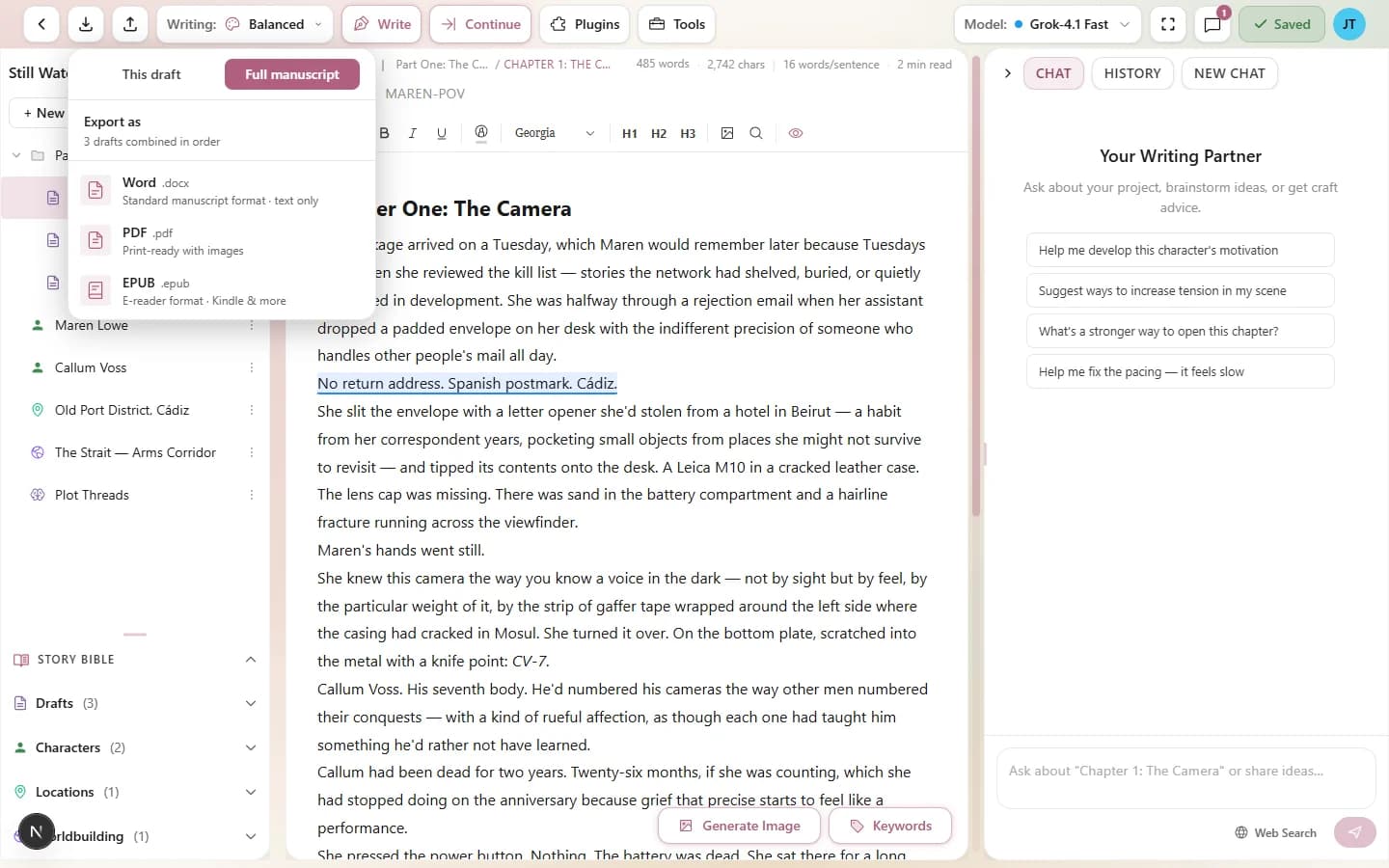
Export Manuscript combines all your draft nodes into one document
Each export format handles manuscript export differently:
- DOCX — includes a title page with the project name and author, followed by chapters separated by page breaks. Each chapter starts with a centered heading.
- PDF — chapters are separated by CSS page breaks. Each chapter begins on a new page with its title as a heading.
- EPUB — each chapter becomes a separate XHTML file within the EPUB. The table of contents lists all chapters with navigation links.
What Gets Exported
Understanding what's included (and excluded) in exports helps you prepare your draft:
Included:
- All text content with formatting (bold, italic, headings, etc.)
- Paragraph structure and spacing
- Images (PDF and EPUB only — DOCX does not include images)
- Blockquotes and list formatting
Automatically removed:
- Inline comments — all comment annotations are stripped during export. The text content remains, but the comment highlights and markers are removed.
- AI markers — any visible AI generation markers are cleaned up.
- Editor UI elements — buttons, menus, and interactive elements from image toolbars and other editor features are stripped.
- Content-editable attributes — editor-specific attributes are removed for clean output.
Format Comparison
| Feature | DOCX | EPUB | |
|---|---|---|---|
| Text formatting | Yes | Yes | Yes |
| Headings | Yes (Word styles) | Yes (visual) | Yes (XHTML) |
| Images | No (text only) | Yes (embedded) | Yes (embedded) |
| Image alignment | No | Yes (flexbox layout) | Basic |
| Page breaks | Yes (chapters) | Yes (CSS) | Yes (per chapter file) |
| Title page | Yes (manuscript) | No | No |
| Table of contents | No (use Word to generate) | No | Yes (navigation) |
| Editable after export | Yes | No | With EPUB editors |
| Best for | Submissions, collaboration | Printing, sharing | E-readers, distribution |
Tips for Best Export Results
- Use headings for chapters. Proper heading structure (H1 for chapter titles, H2/H3 for sections) produces better-formatted exports across all formats. Manuscript exports rely on your node titles, but heading structure within each draft helps with navigation and formatting.
- Preview before exporting. Scroll through your draft in the editor to make sure everything looks right. Broken formatting, orphaned images, or stray comments are easier to fix before export than after.
- Export DOCX for agent submissions. Most literary agents and publishers expect .docx files. The export uses standard manuscript formatting (Georgia, 12pt, 1-inch margins) which meets most submission guidelines.
- Export PDF for beta readers. PDF is read-only and looks identical on every device. It's the safest format for sharing a draft you don't want edited.
- Export EPUB for personal reading. Send the EPUB to your e-reader to experience your manuscript the way a reader would. It's a great way to catch issues you miss on screen.
- Remove comments before exporting. While comments are automatically stripped from exports, you may want to review and resolve them first. Open the comments panel and address any outstanding notes before your final export.
- Check image placement for PDF. If your draft uses floating images (left or right-aligned), the PDF export converts them to side-by-side layouts. Preview the PDF to make sure the text flows correctly around images.
- Use manuscript export for complete projects. If you have multiple draft nodes that form a continuous narrative, use Export Manuscript instead of exporting each draft individually. It handles chapter ordering, page breaks, and (for DOCX) a title page automatically.